2 computers required :
- ServerMac
- ClientMac
On ServerMac :
Create a Certificate Authority and export the Root Certificate (If you already have a self-signed RootCA that you want to deploy, then you can skip this part)
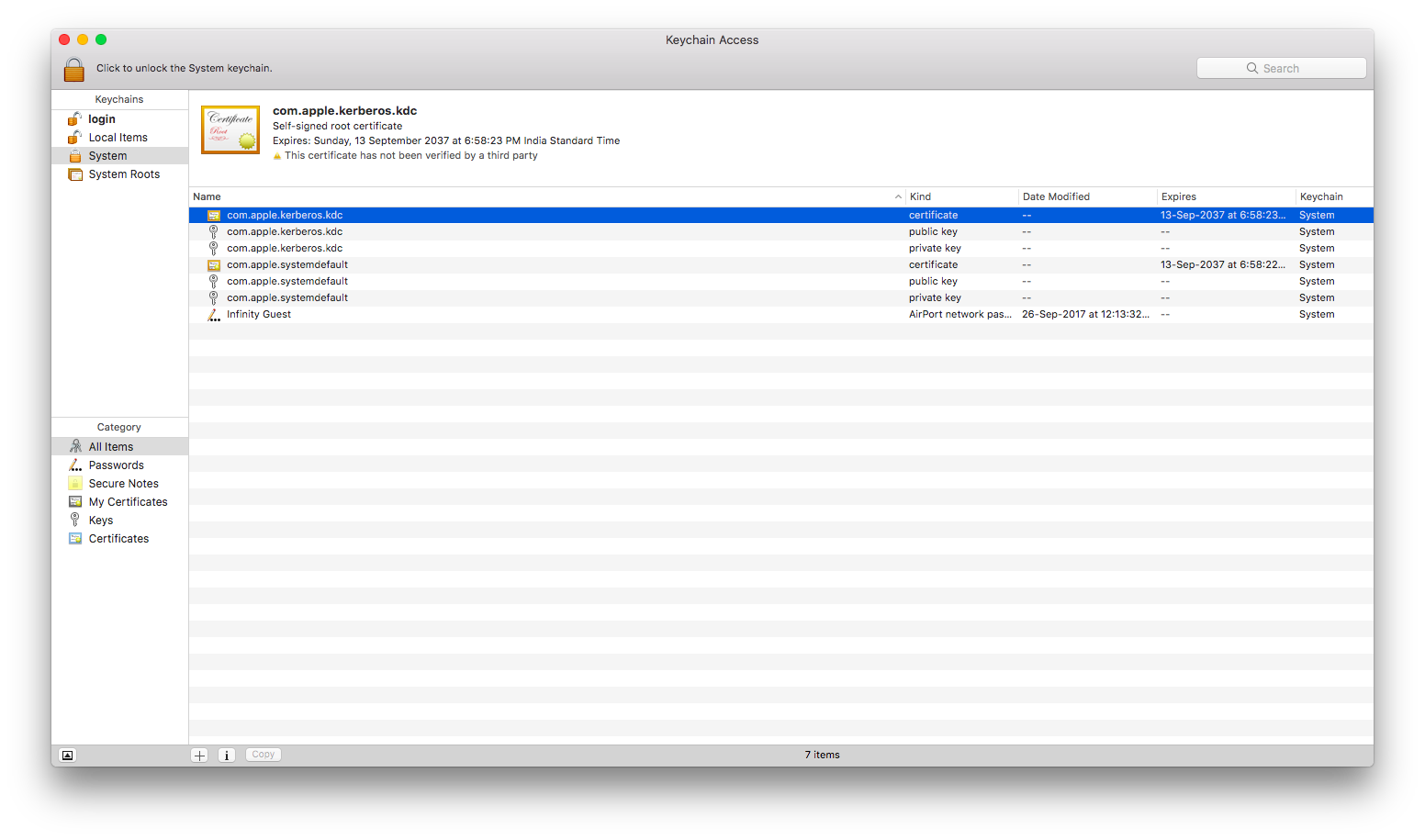
- Open Keychain Access.
- Select the System keychain.
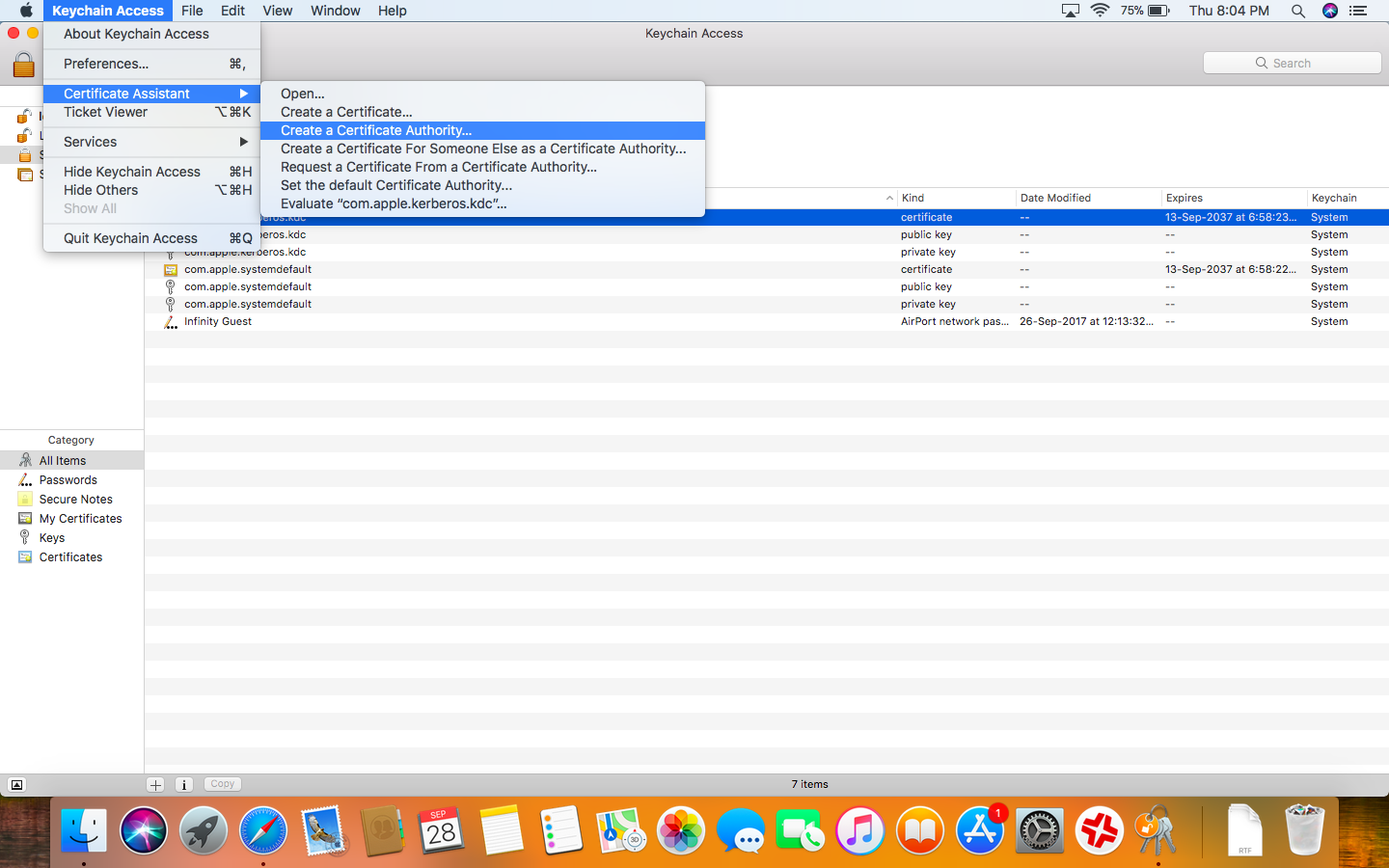
- From the Keychain Access menu, navigate to Certificate Assistant and select Create a Certificate Authority.
- For the name, enter “MyCompany Root CA”.
- Select SSL Server from the User Certificate pop-up menu.
- Deselect “Make this CA the default.”
- Enter [email protected] as the email address.
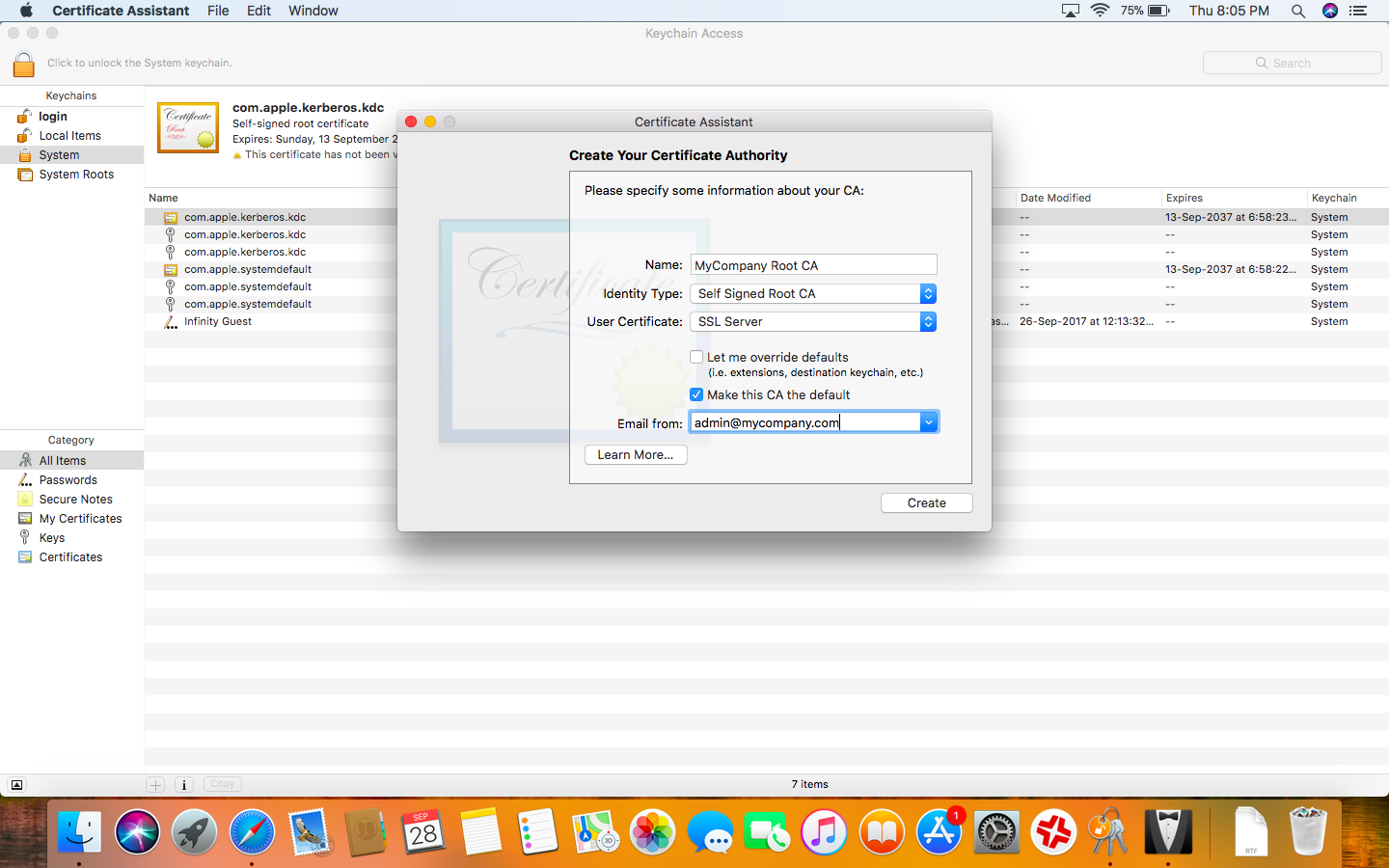
- Click Create, then close the Certificate Assistant.
- Search for the new root certificate identity called “MyCompany Root CA”.
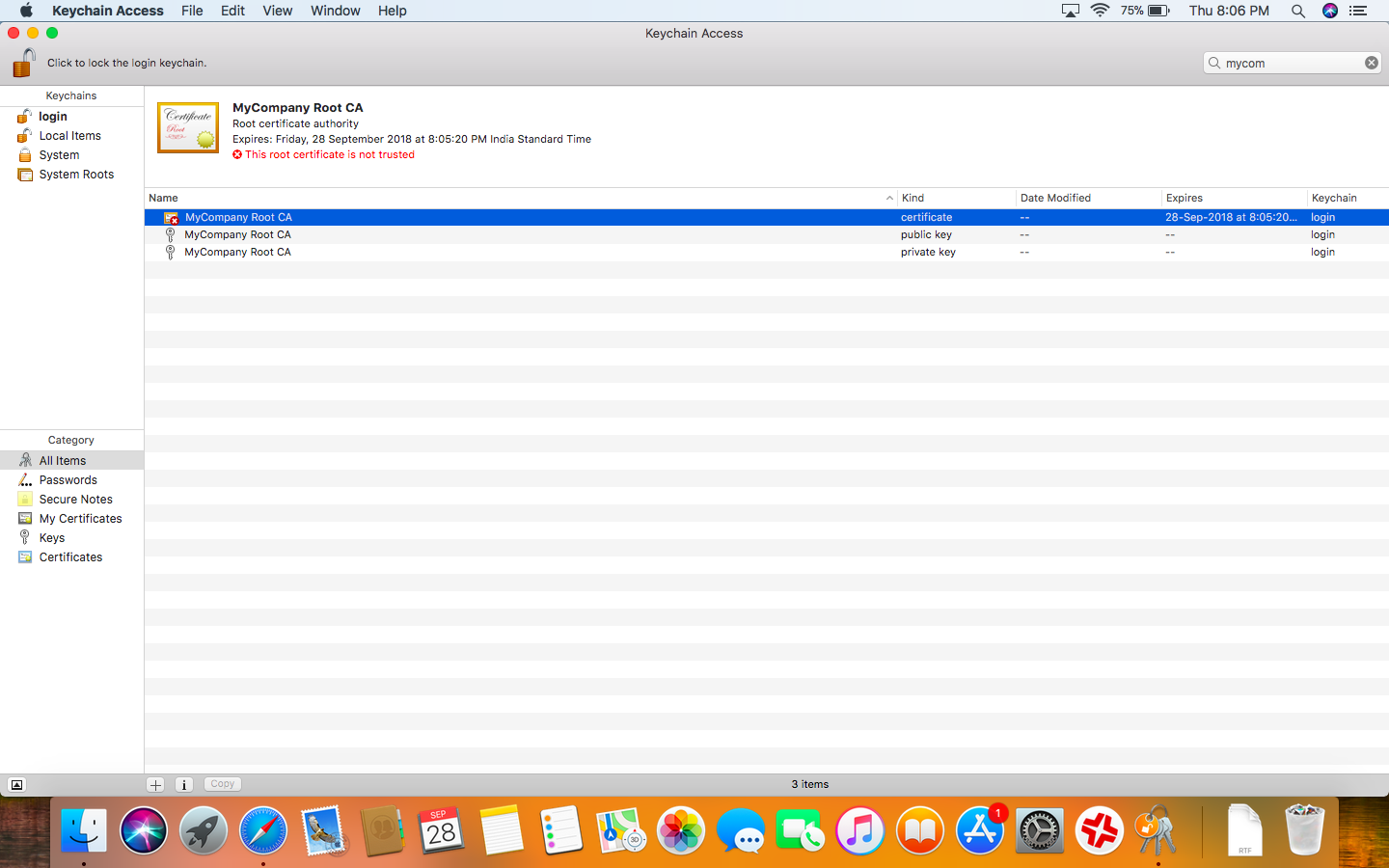
- Double-click the “MyCompany Root CA” certificate.
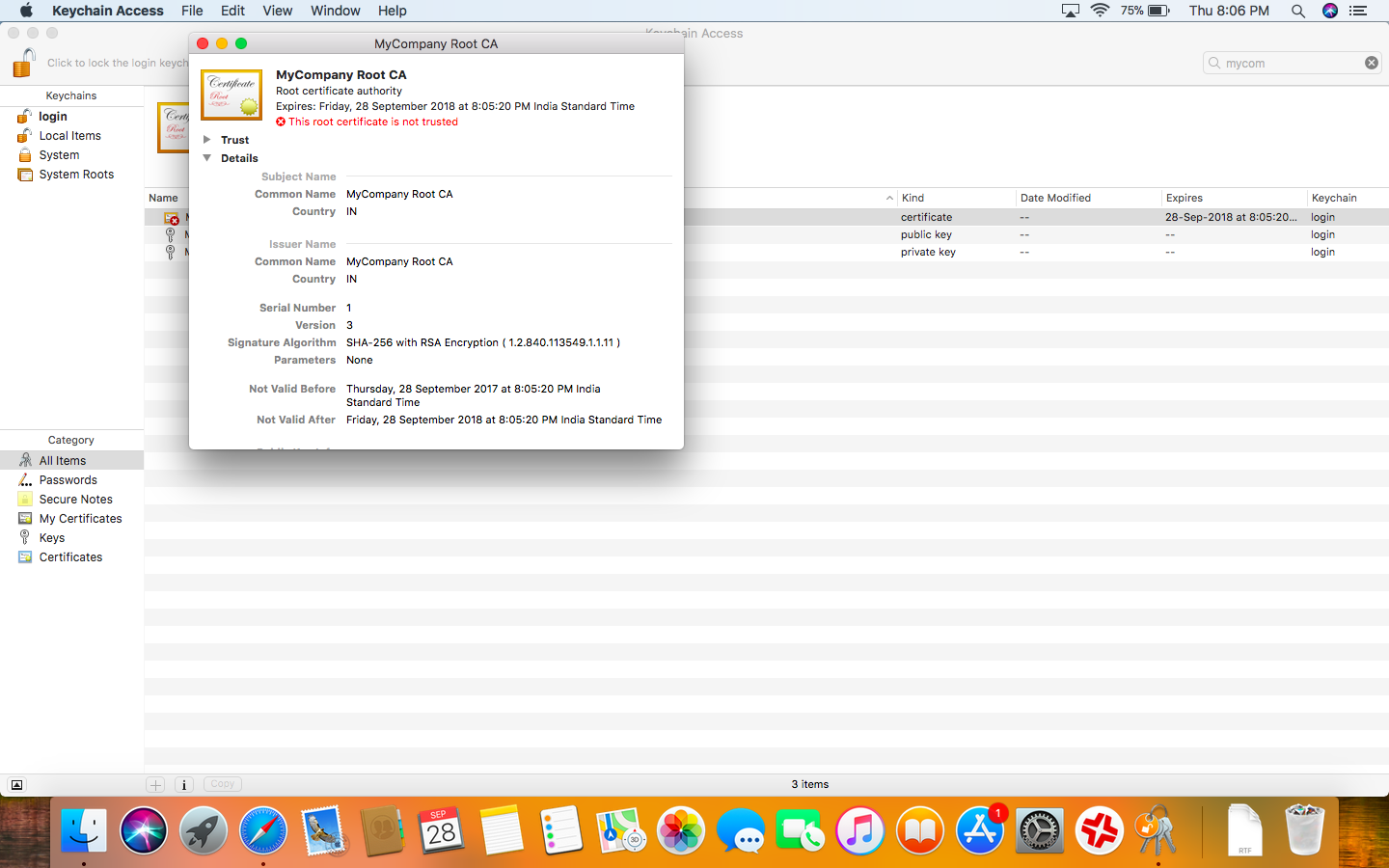
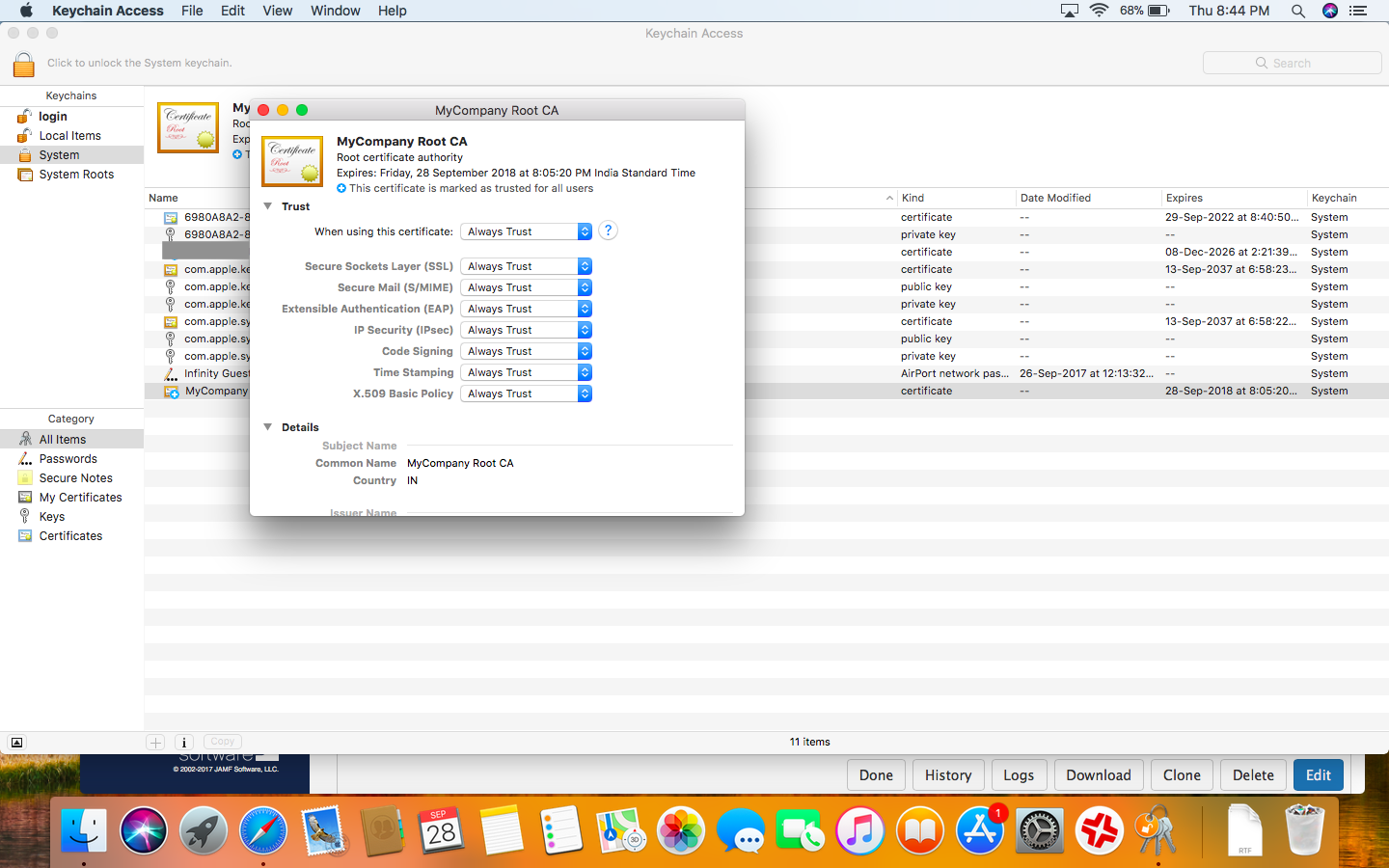
- Click the Trust disclosure triangle.
- From the “When using this certificate” pop-up menu, select Always Trust.
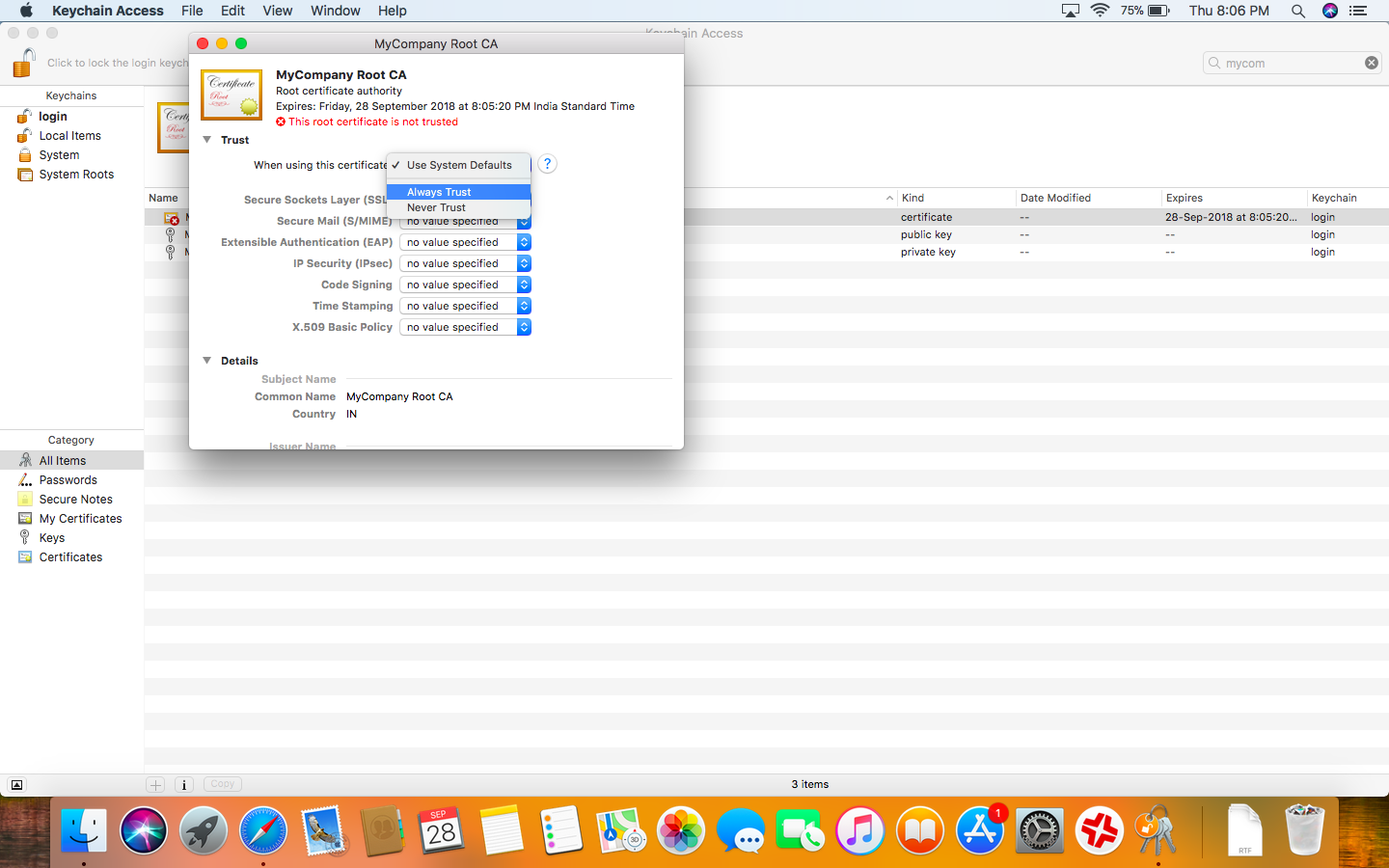
- Close the “MyCompany Root CA” certificate inspection window.
- When prompted, enter the admin credentials for your ServerMac and click Update Settings.
- Select all three “MyCompany Root CA” keychain items and drag them to the System keychain.
- When prompted, enter the admin credentials for your ServerMac and click Modify Keychain.
- Click Always Allow.
- Select the “MyCompany Root CA” certificate, then choose Export Items from the File Menu.
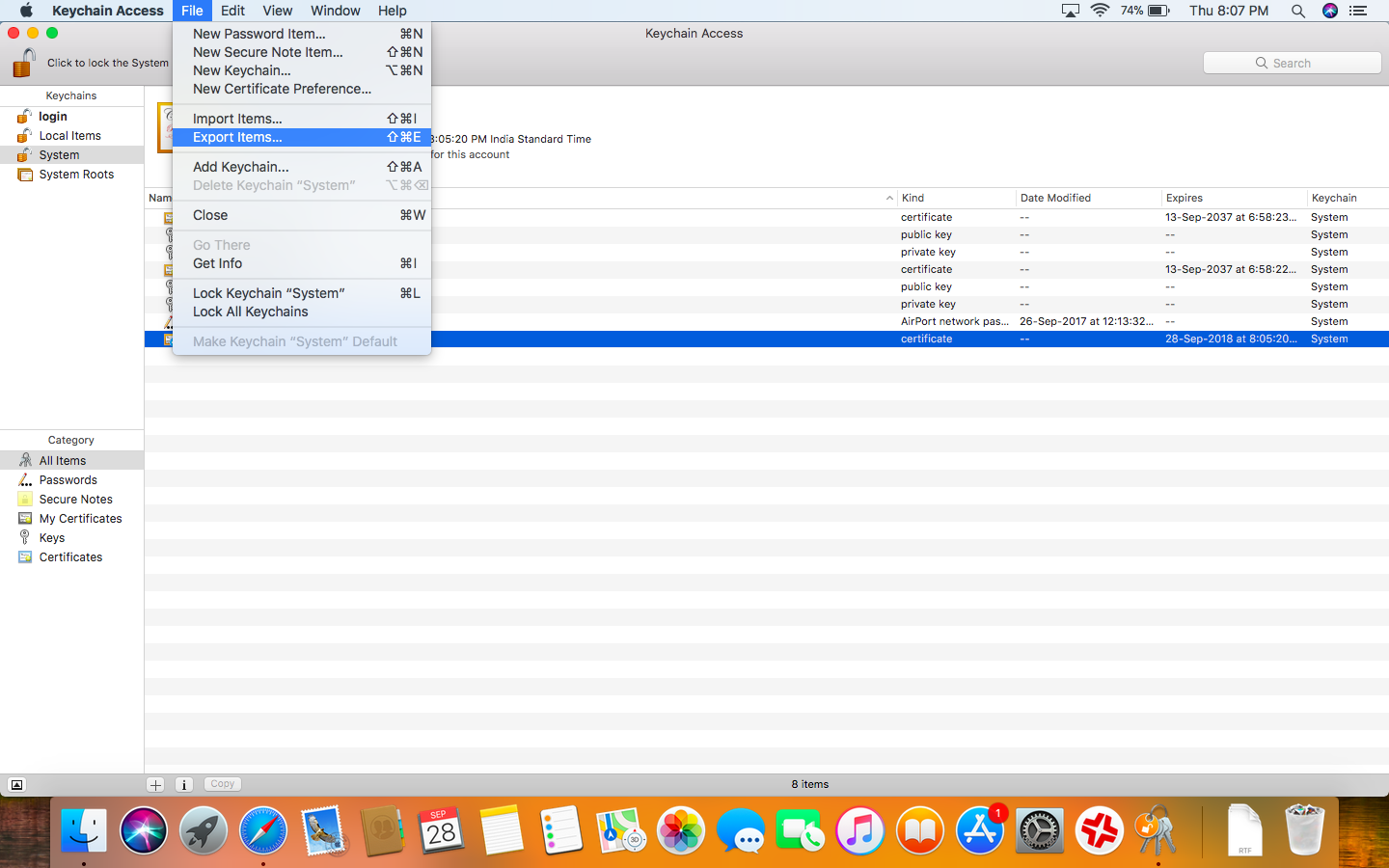
- Save the certificate on your Desktop folder.
Create certificate for the intranet website (This is not required; just to verify later we will create this).
- Open Server and select Certificates from the Server group on the left.
- Click the Add (+) button and choose “Create a Certificate Identity” from the pop-up menu.
- In Certificate Assistant, enter “intranet.mycompany.com” as the name.
- For Identity Type, choose Leaf.
- Click Create.
- When prompted to choose an issuer, select “MyCompany Root CA” and click Create.
- Click Done.If prompted, enter the admin credentials for your server and click OK.
- When prompted to add the certificate to the system keychain, click Always Allow.A new certificate appears in the list of certificates for your server.
OR
You can also create a leaf certificate with this method : (this is done without the Server app)
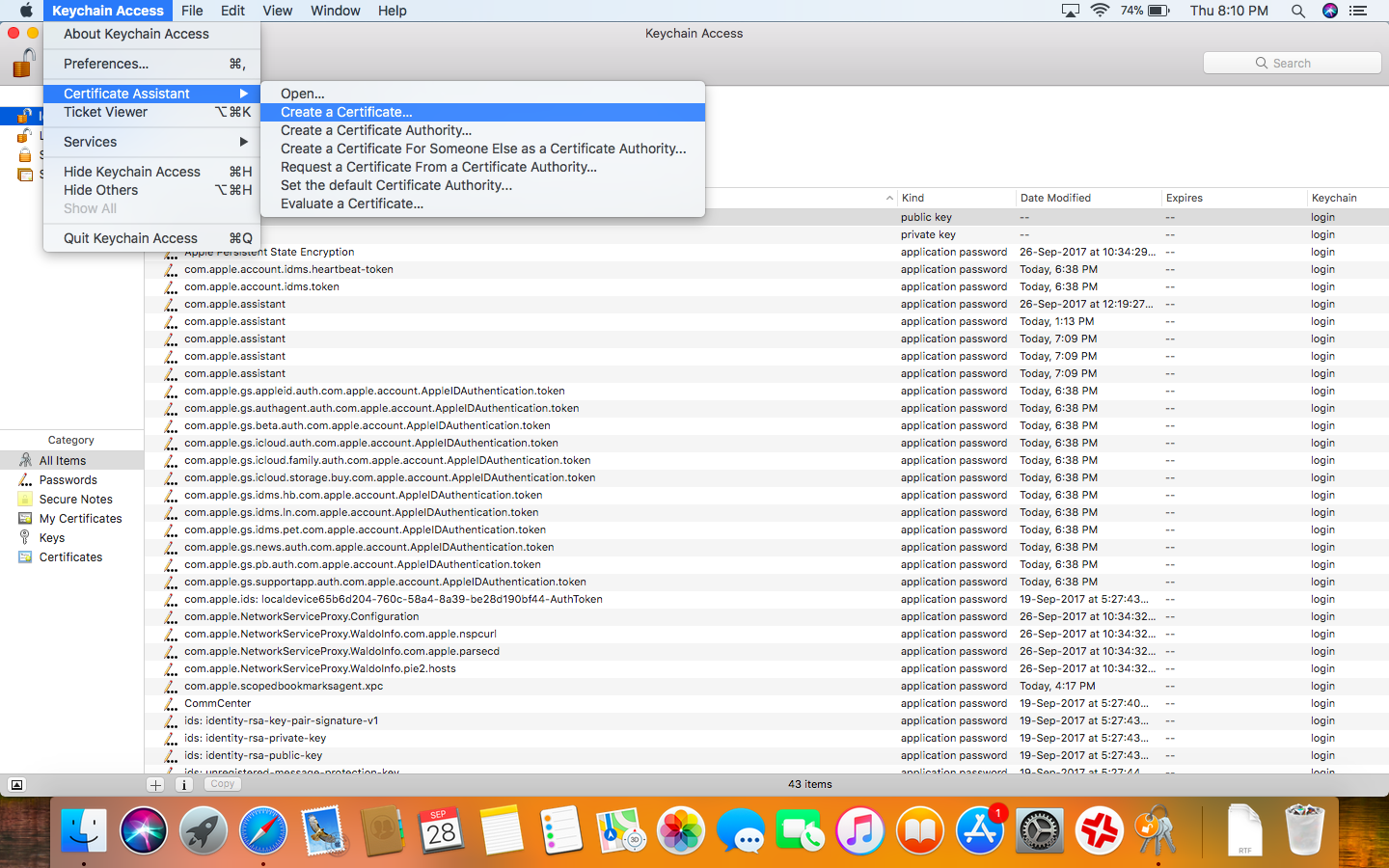
- Keychain Access > Certificate Assistant > Create a certificate
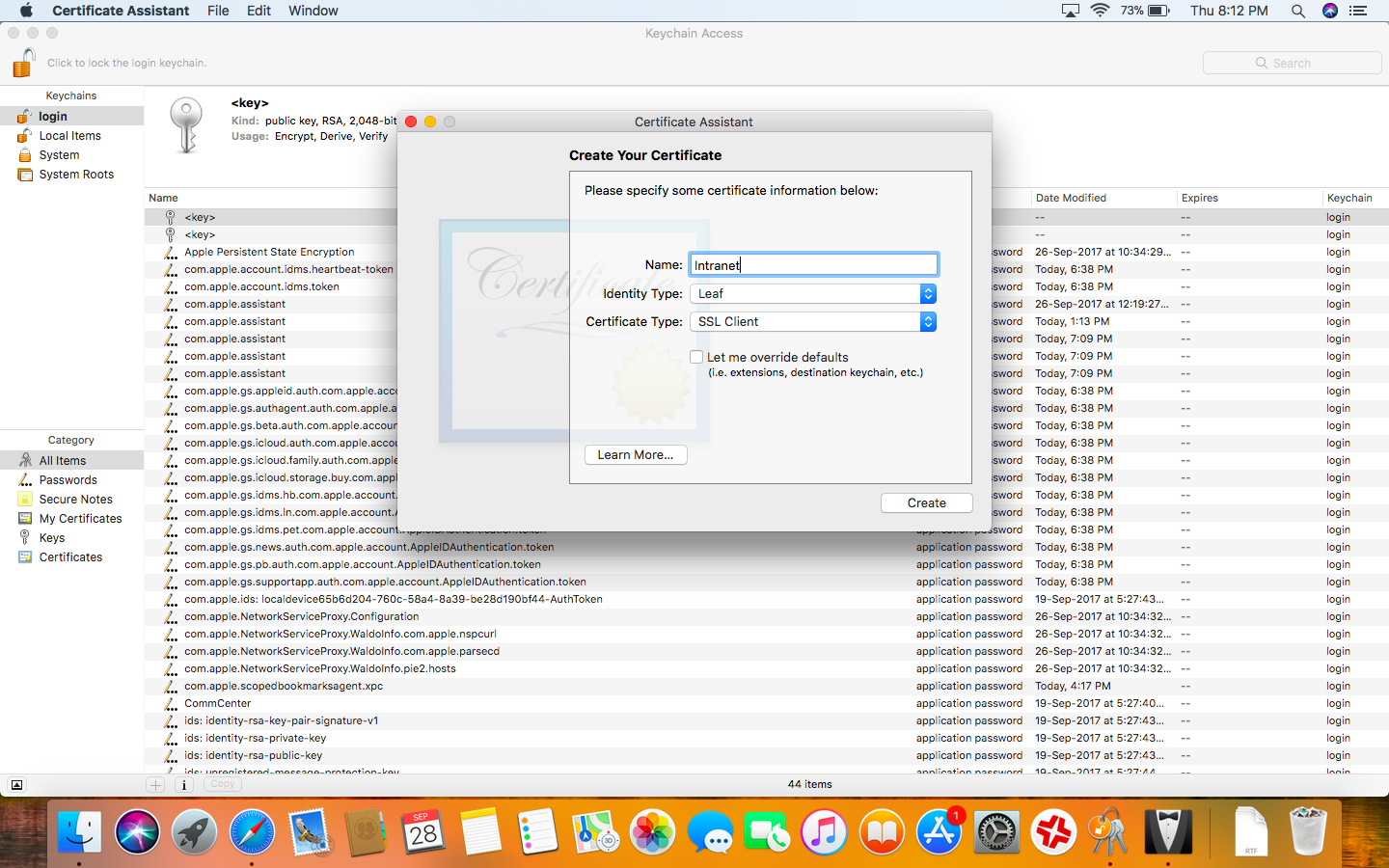
- Name – Intranet ; Identity Type – Leaf ; Certificate Type – SSL Client
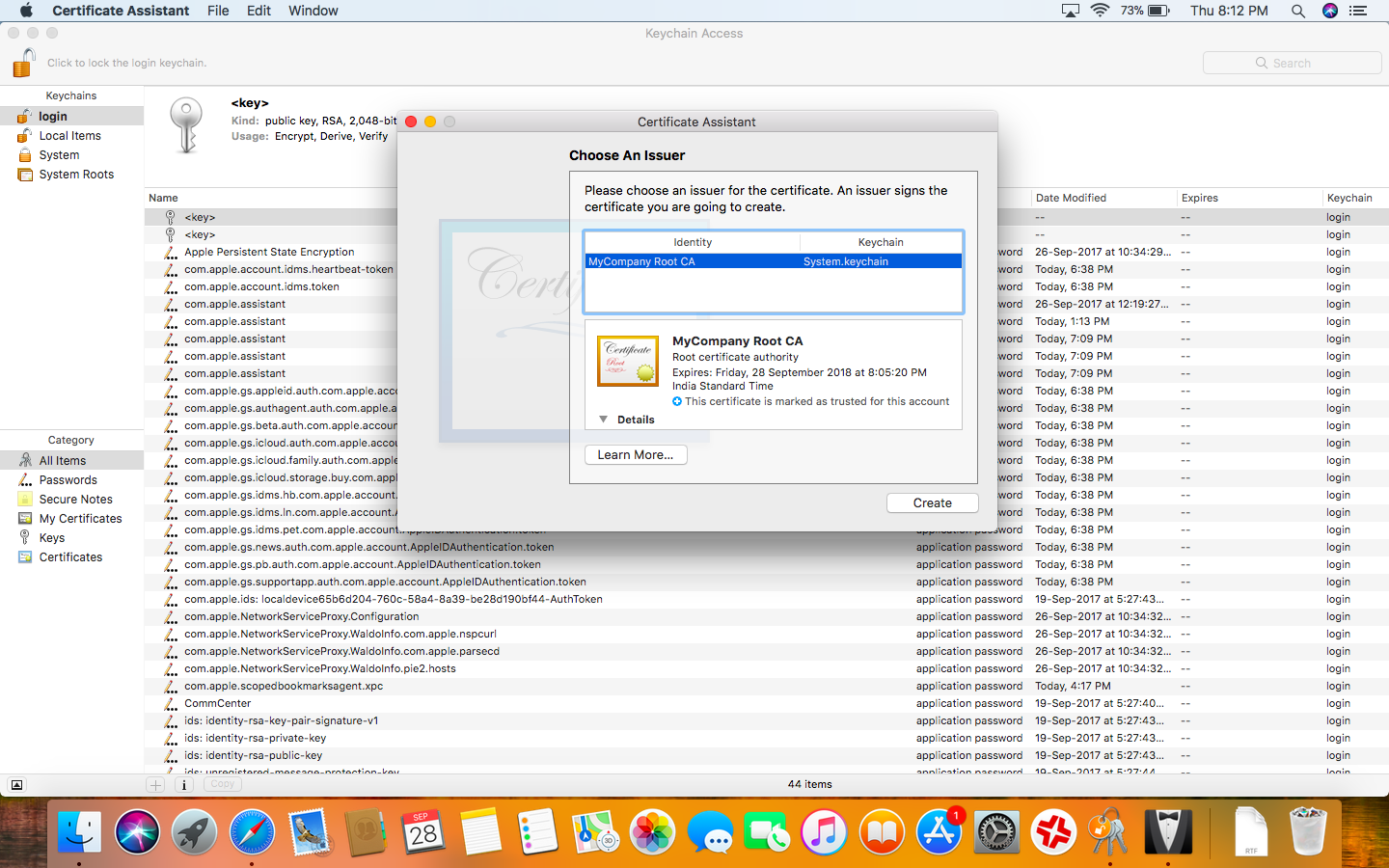
- Sign it with your earlier created “MyCompany Root CA”
Next, we need to create a Configuration Profile. There are couple of ways to do this:
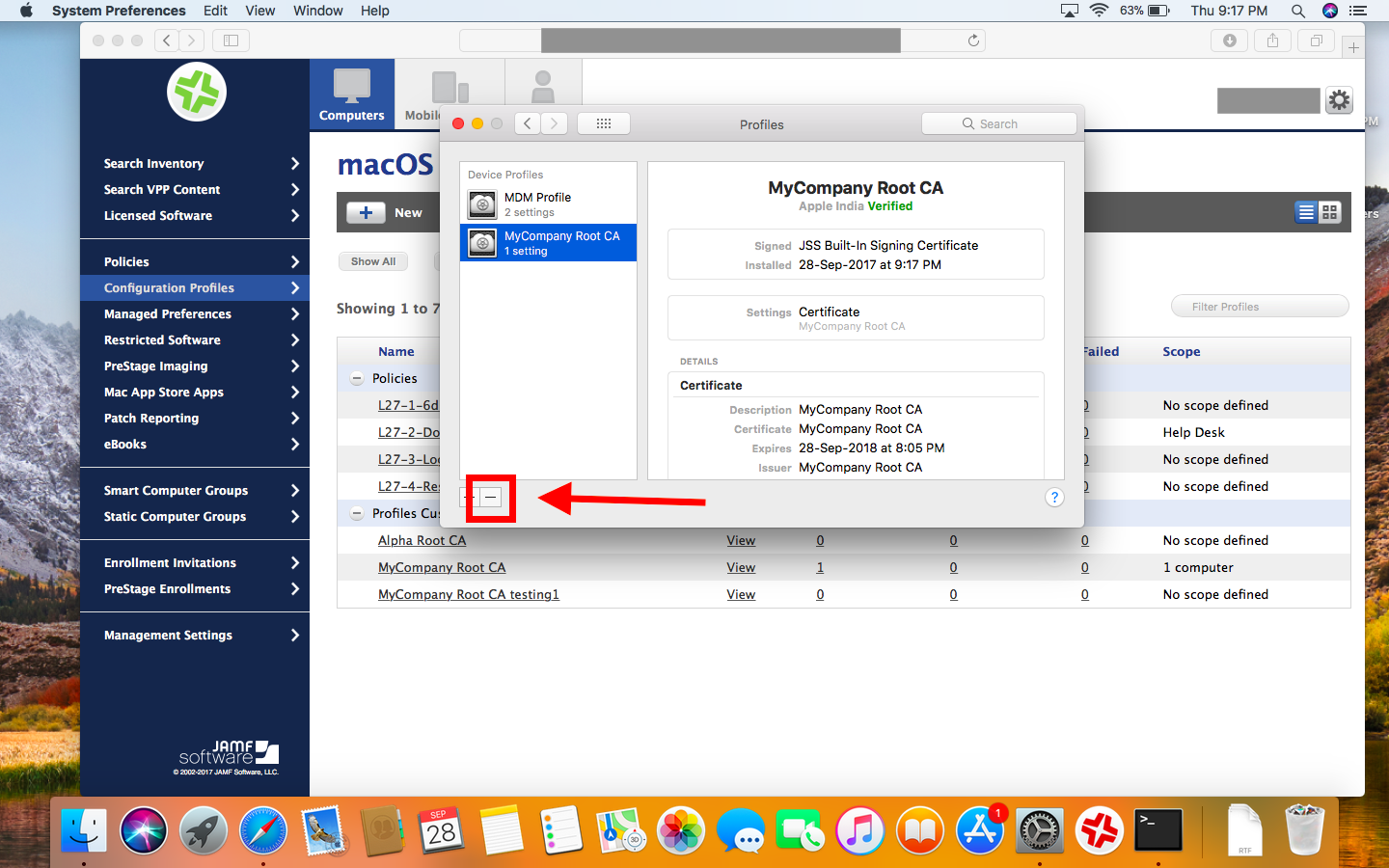
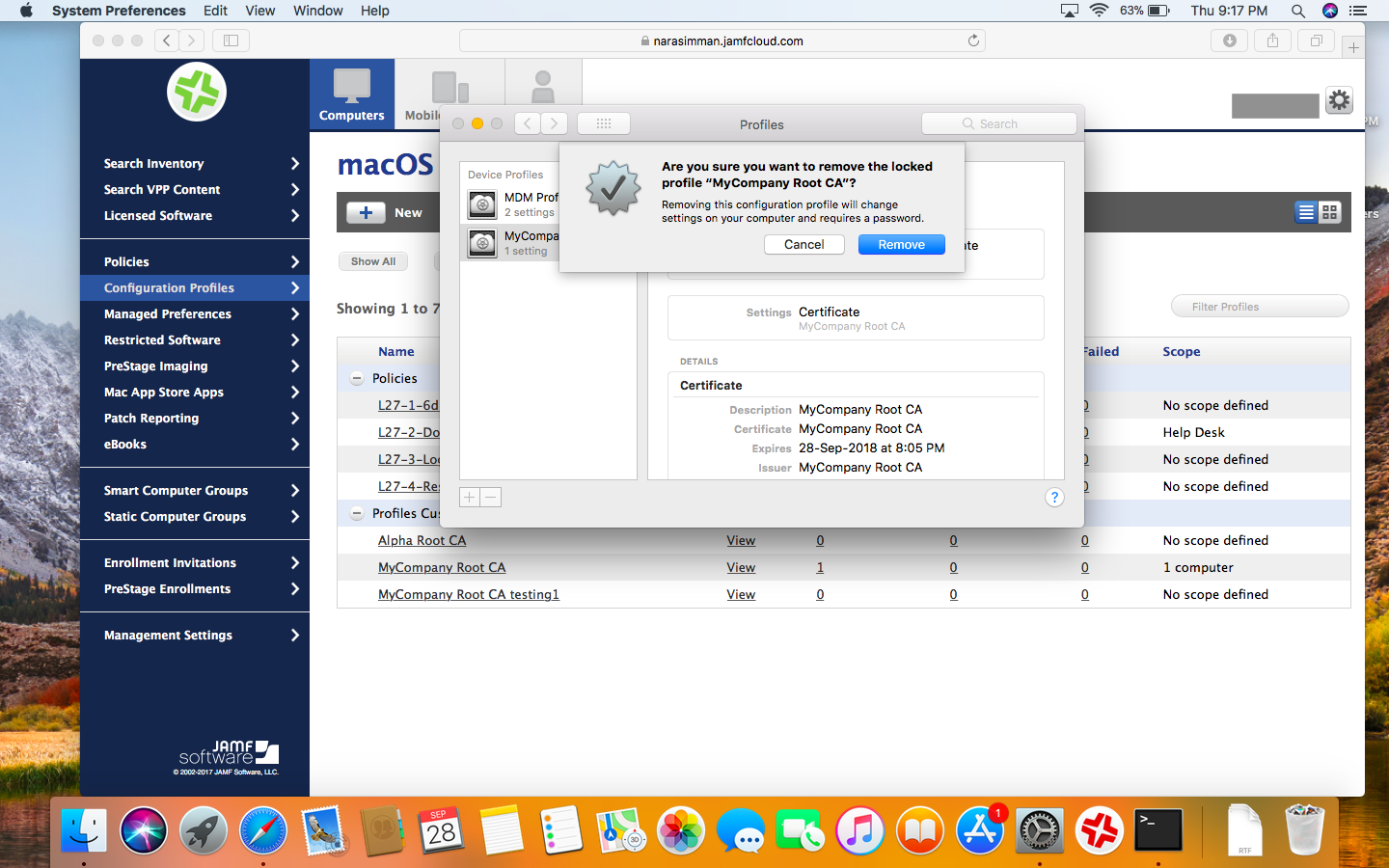
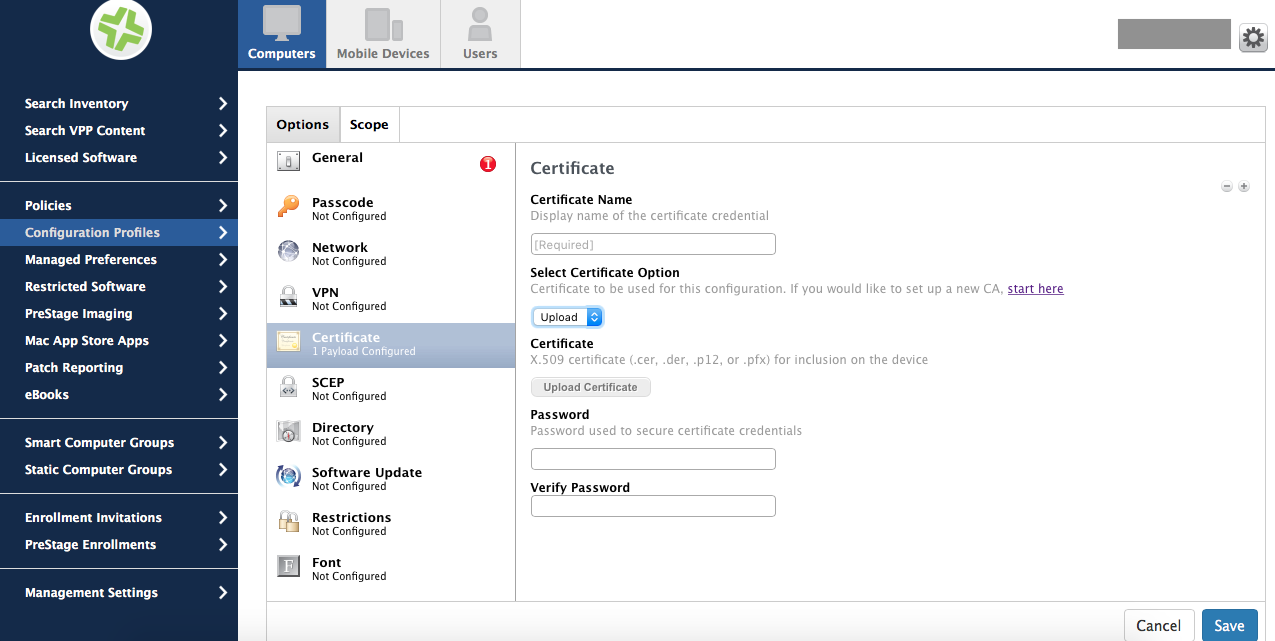
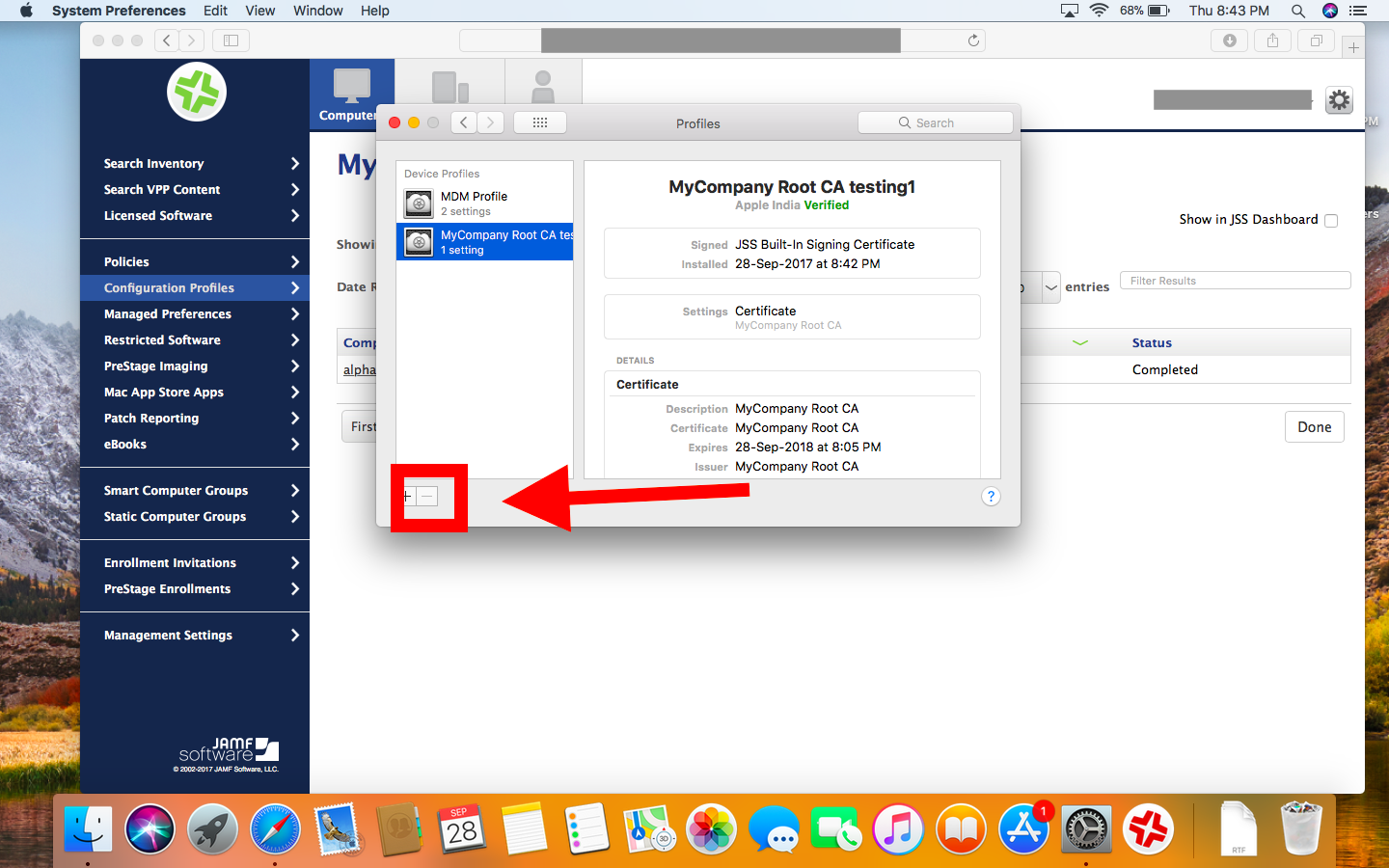
Method 1 : We can directly upload the RootCA.cer in the JSS. The advantage of this method is, the Client devices will not be able to delete the profile from the System Preference. The “minus” symbol will be greyed out for them.
Go to your JSS
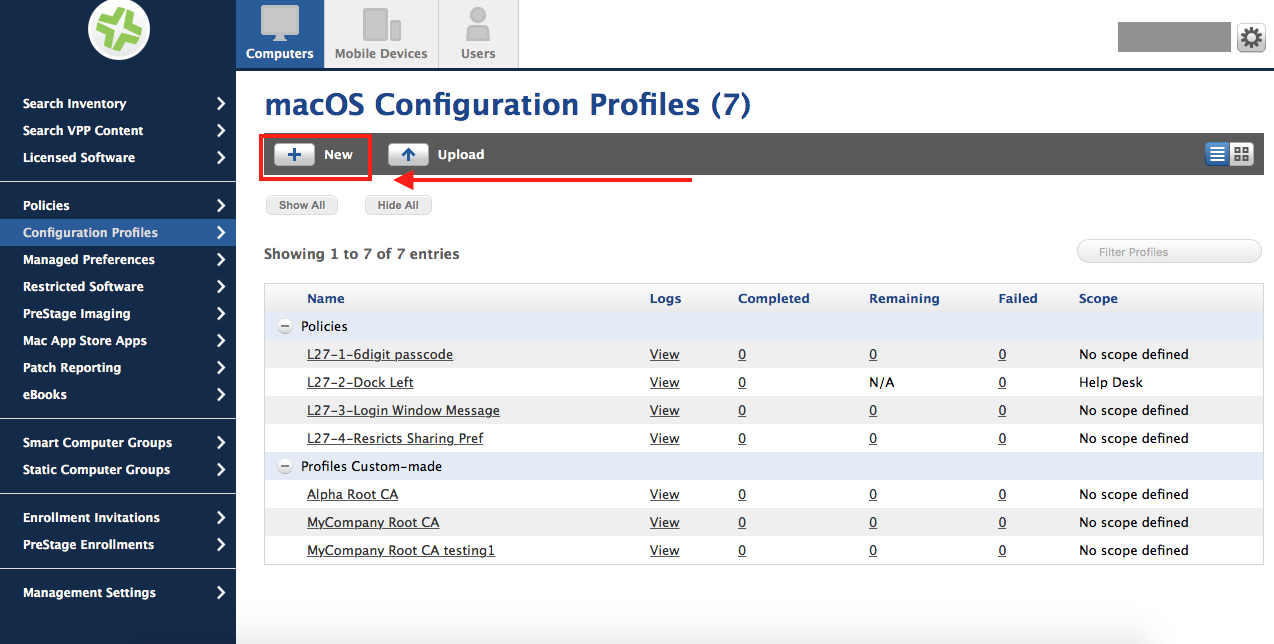
- Configuration Profile > New
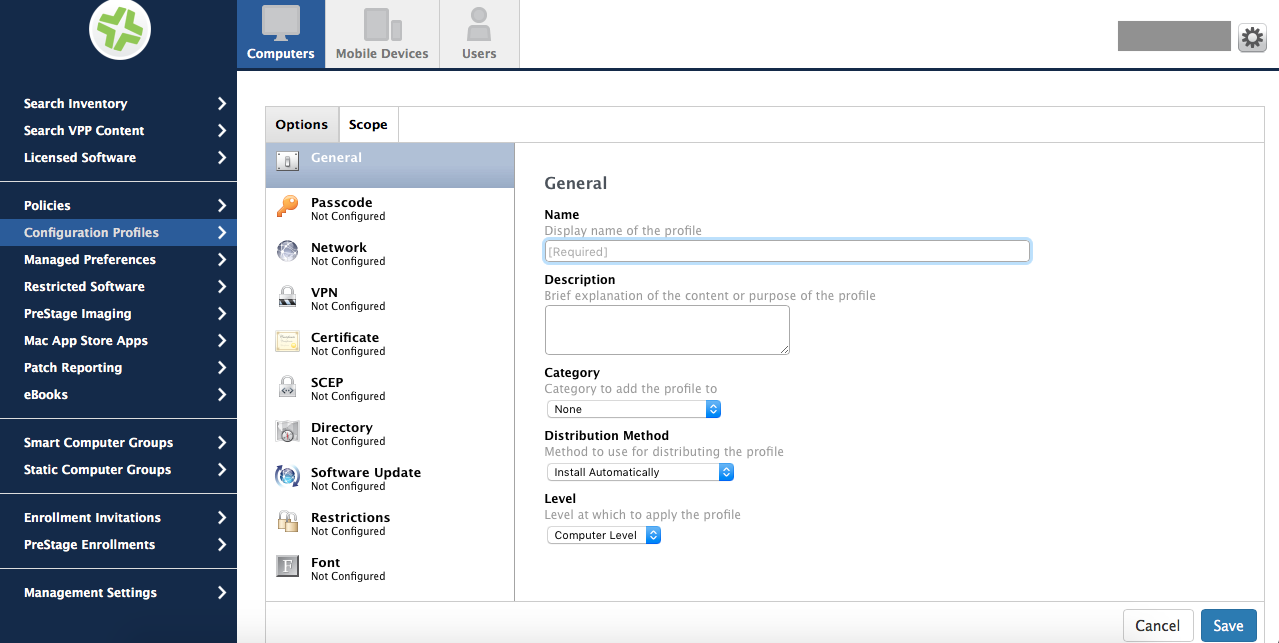
- Give a Name ; Distribution Method > Install Automatically; Level > Computer level
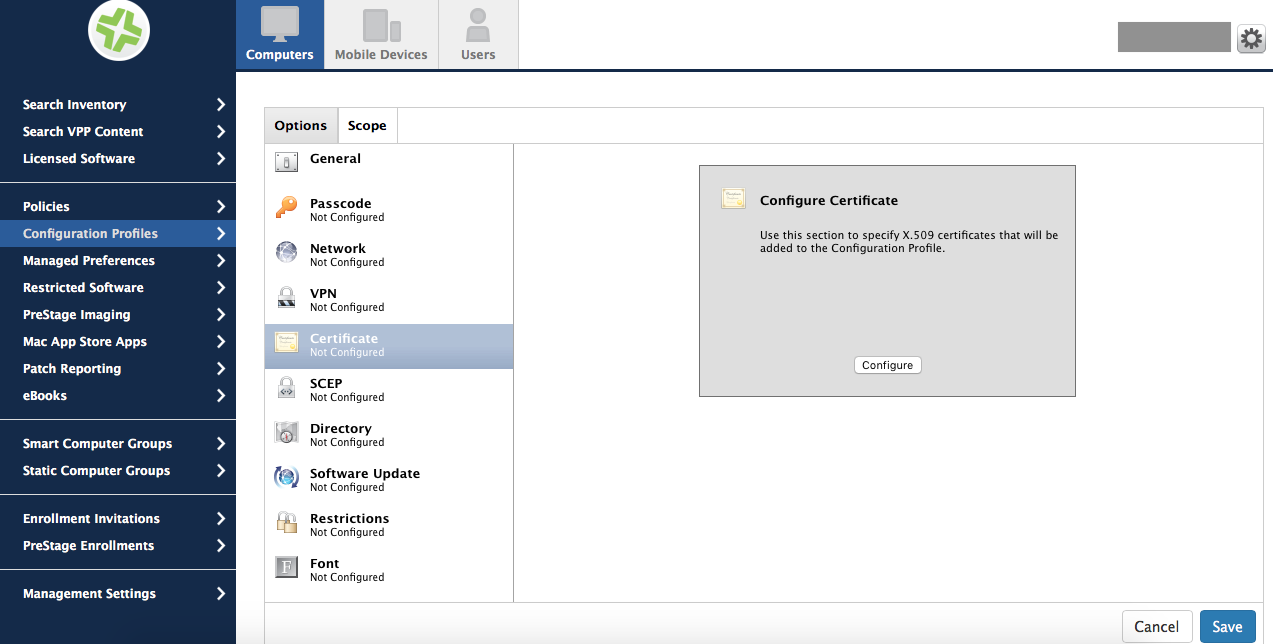
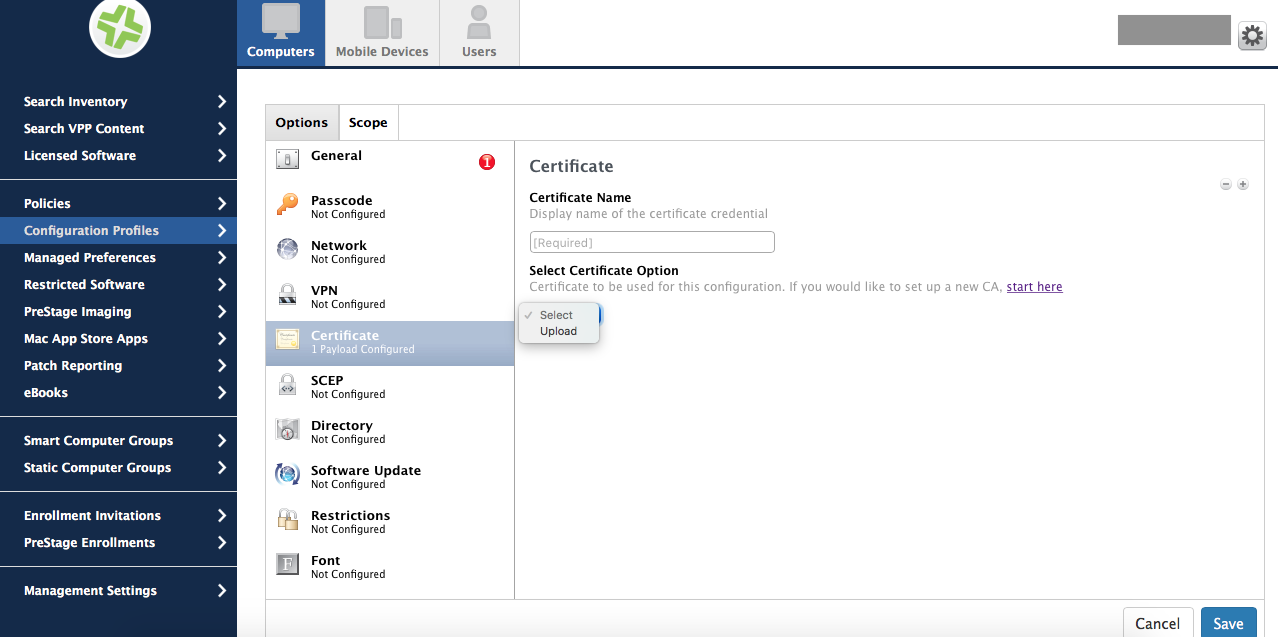
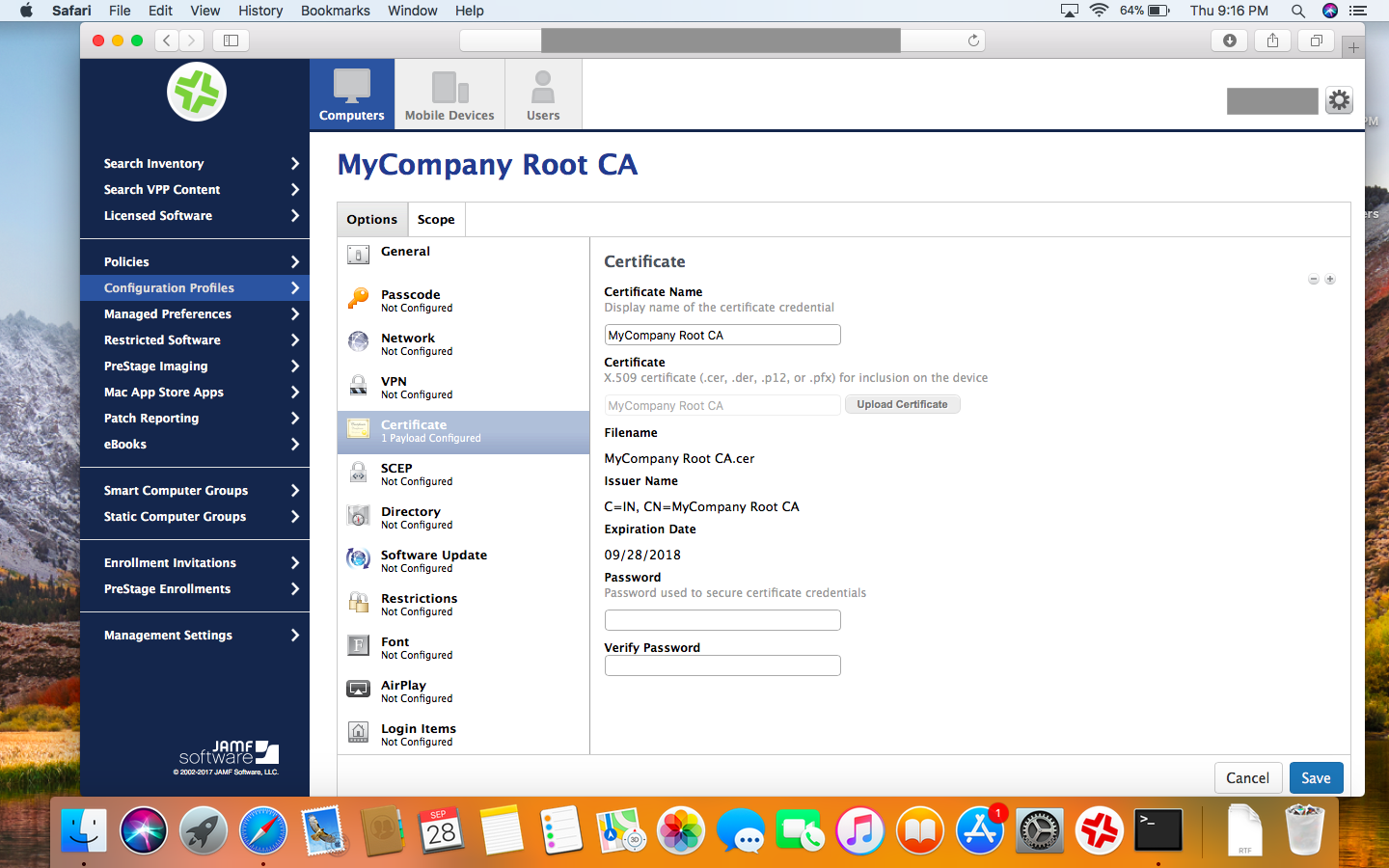
- Certificate > Configure ; upload the “RootCA .cer” file; Save
- Scope > whatever
On ClientMac :
- The Profile pane now lists the “MyCompany” cert profile. (Cannot be removed by user)
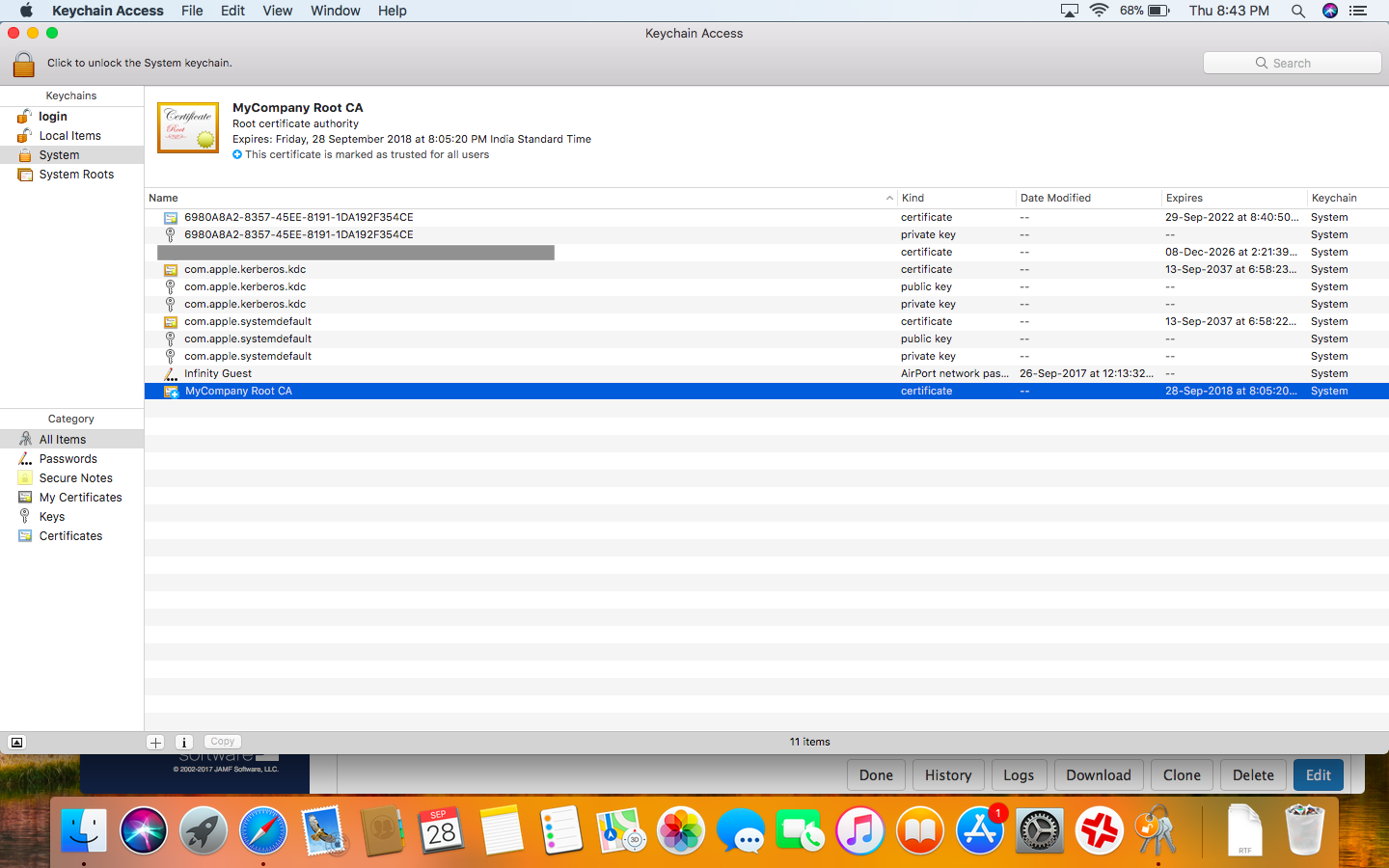
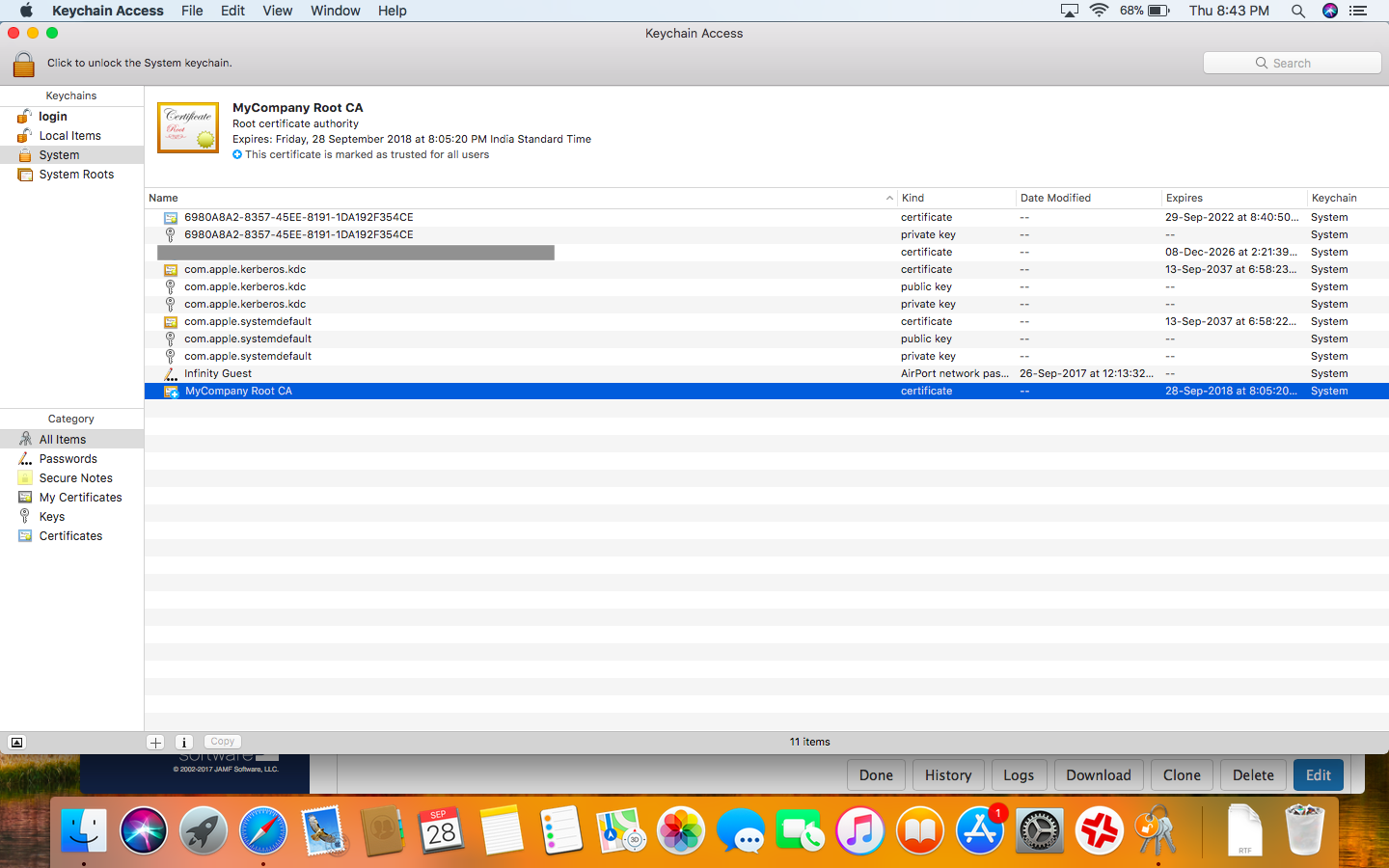
- You can also verify in Keychain app. It will be in System keychain.
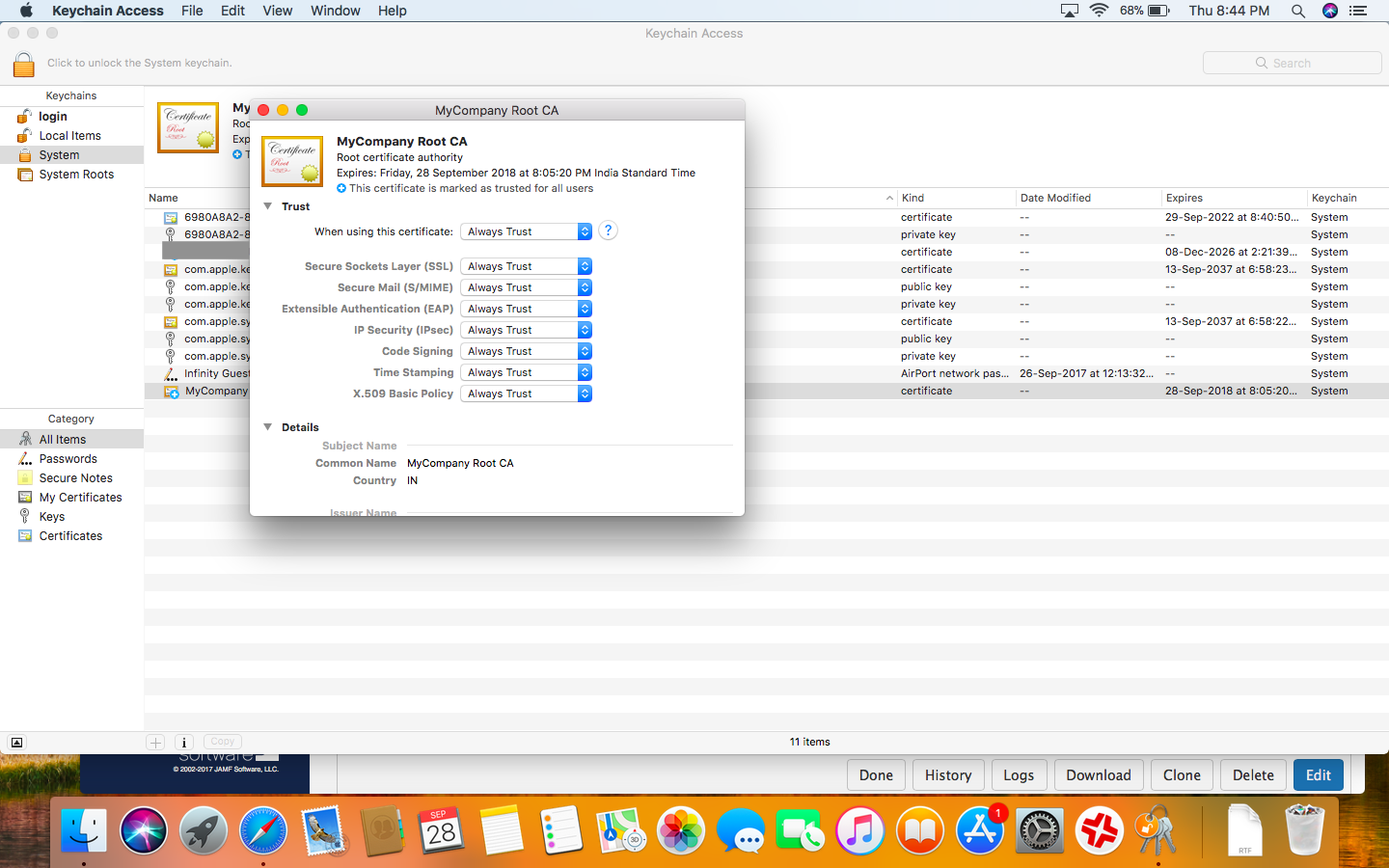
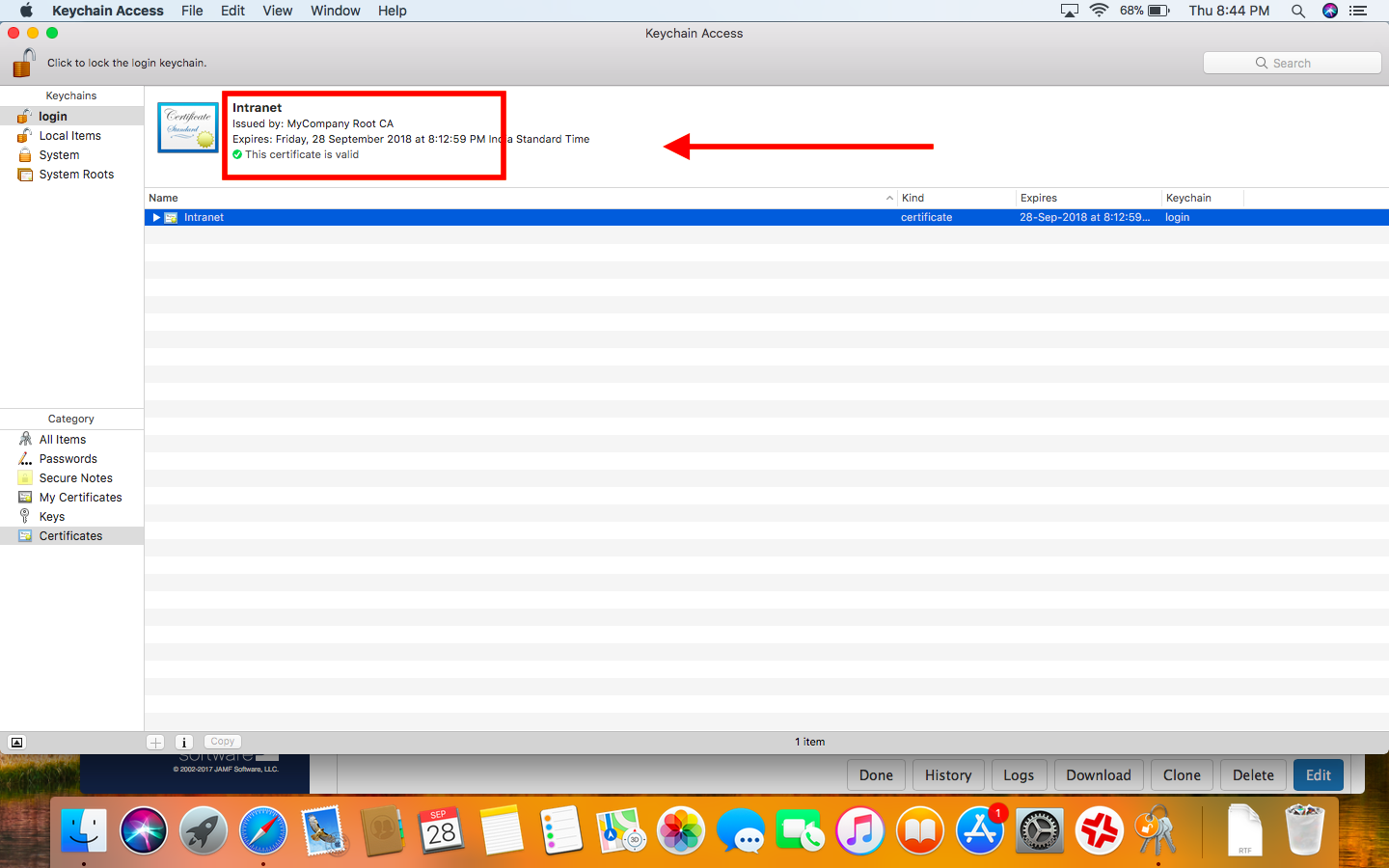
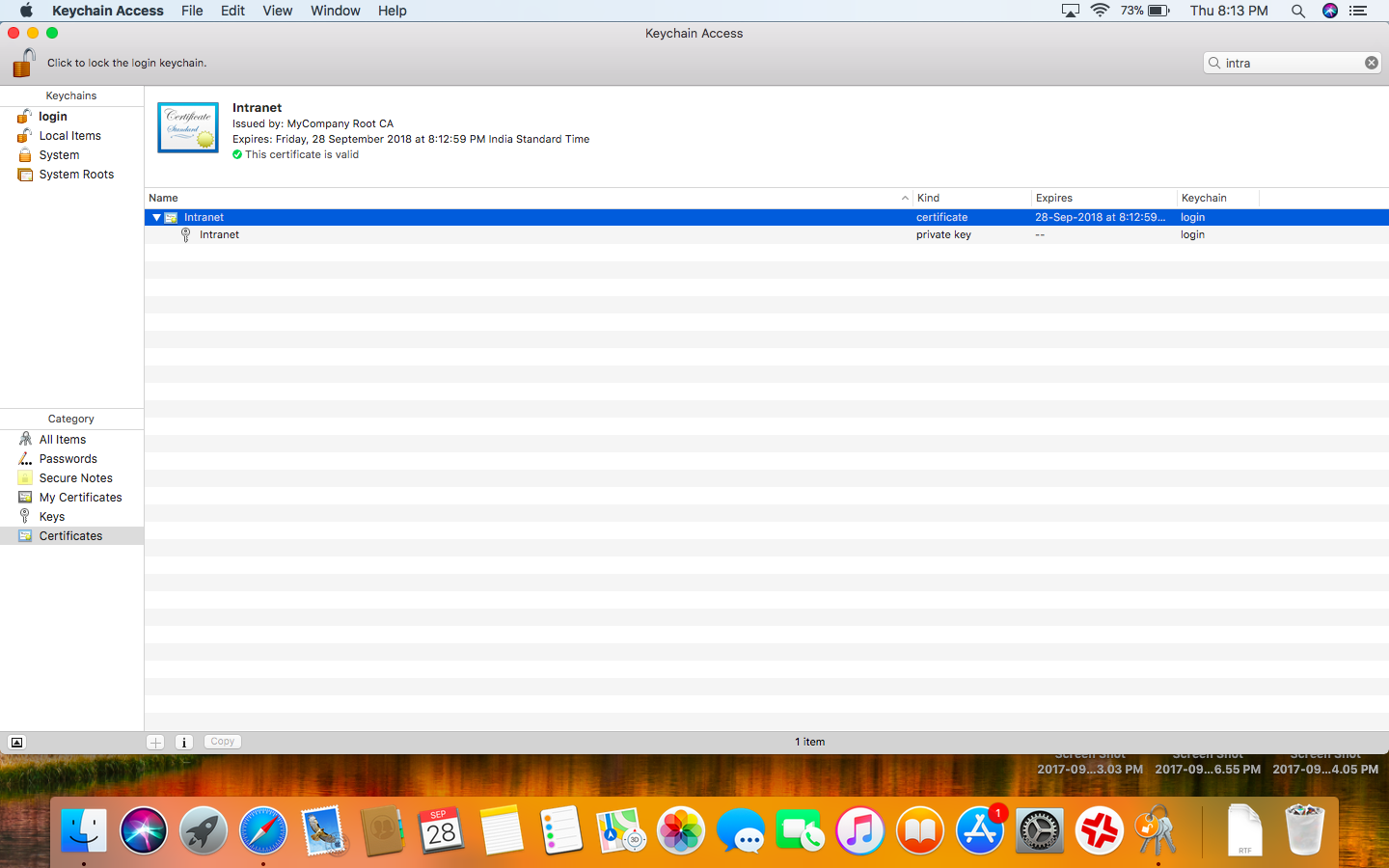
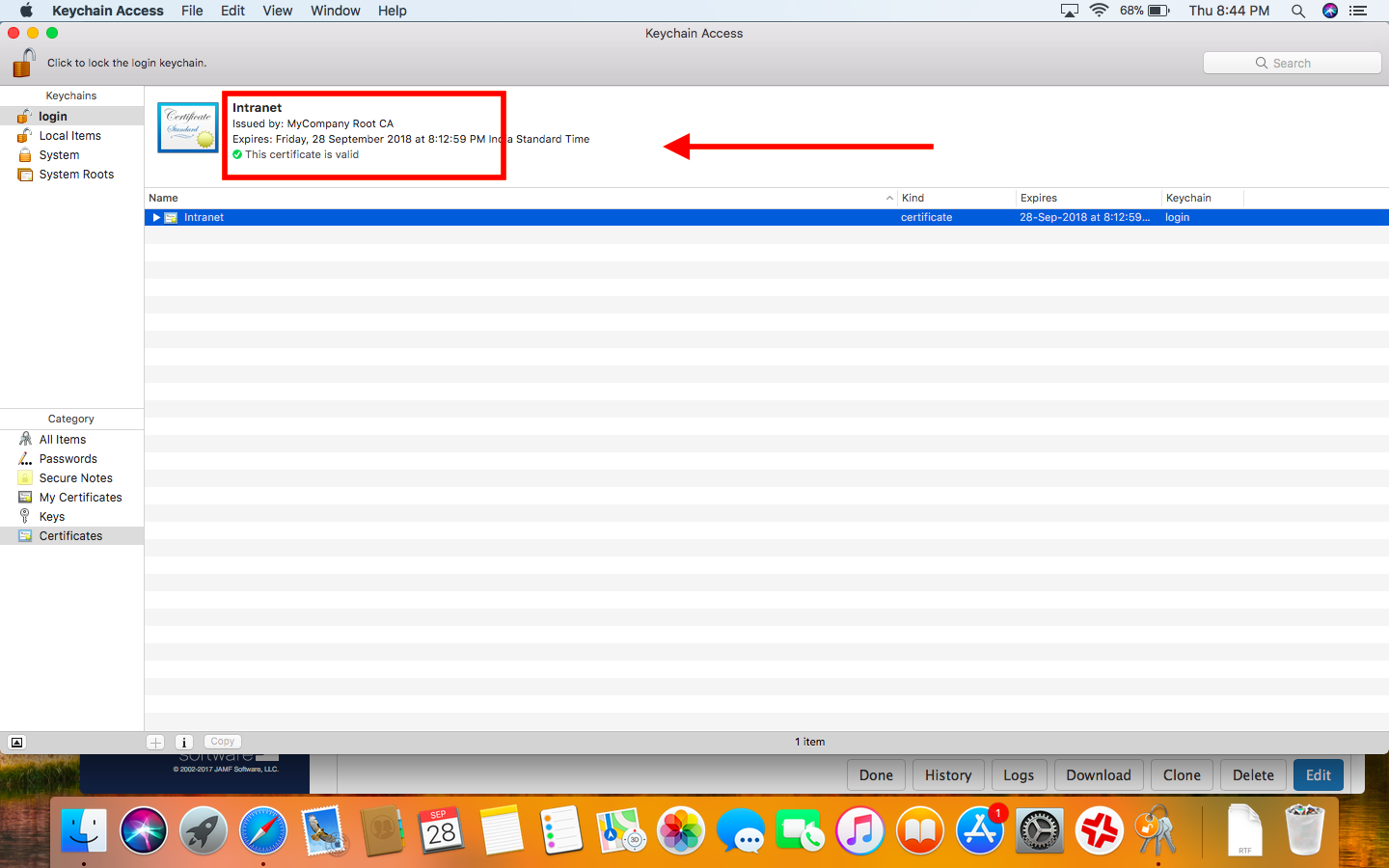
- If the endusers are using any service which is signed with RootCA like the eg. “intranet” leaf certificate. You can see that it says “Valid”.
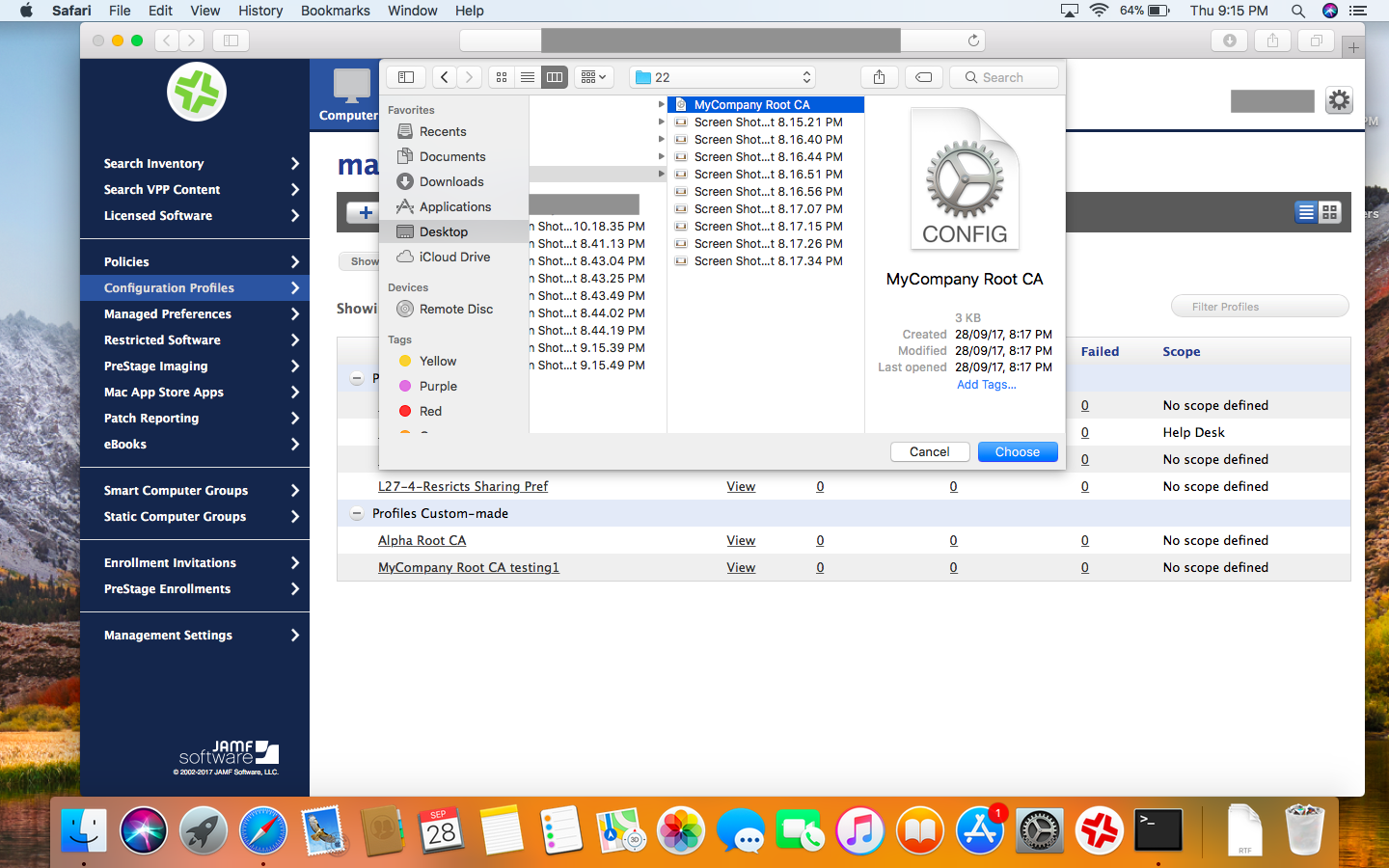
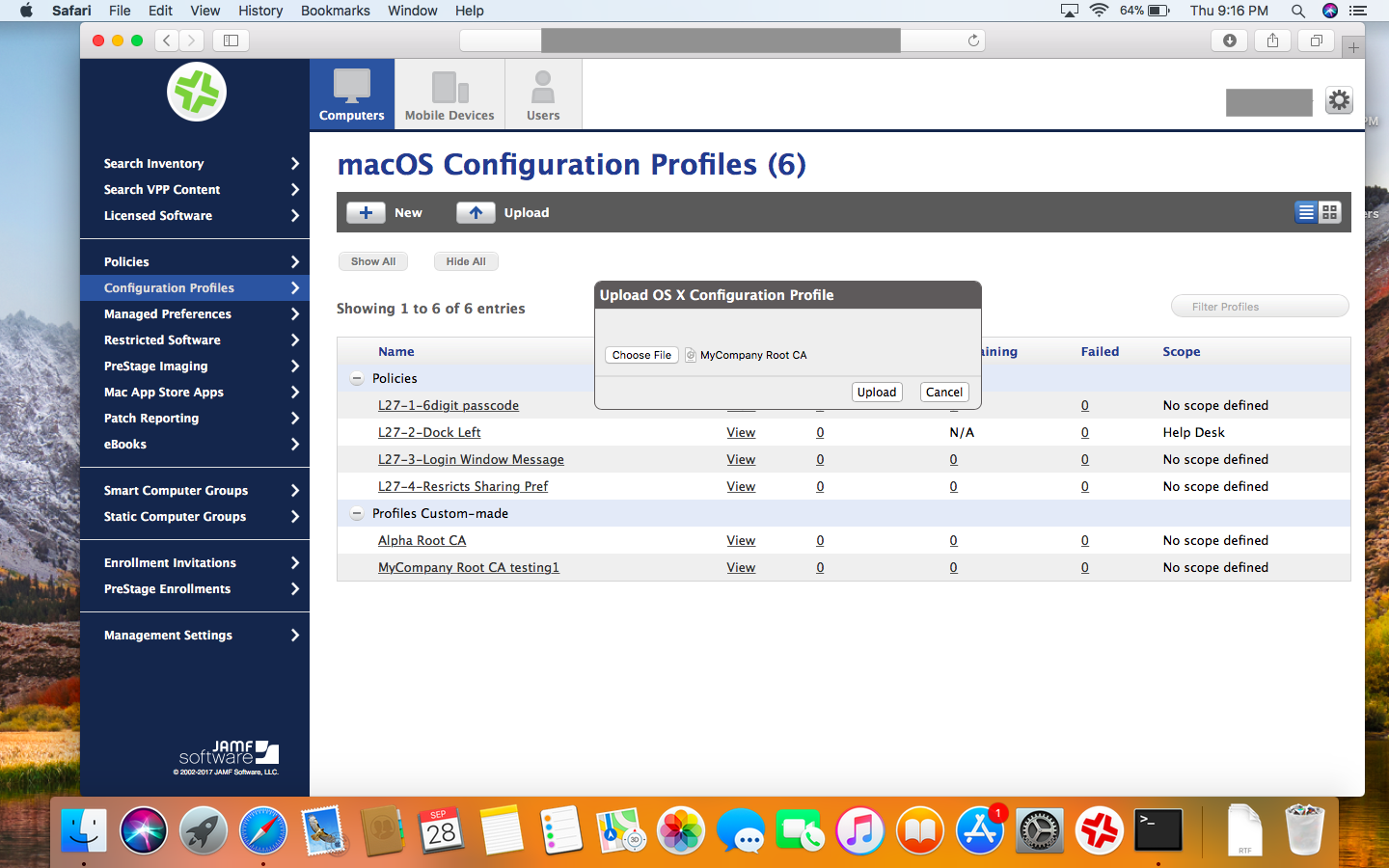
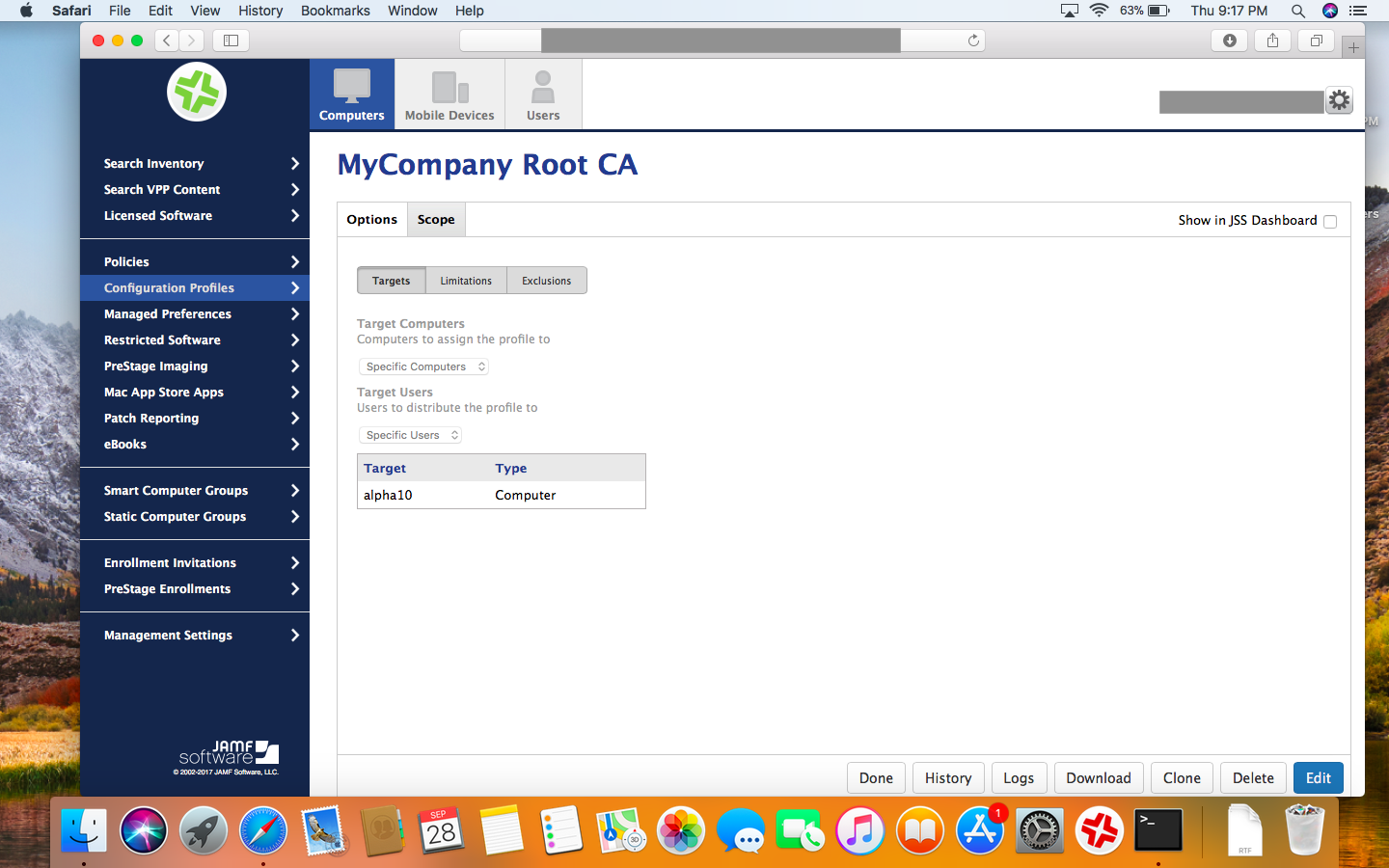
Method 2 : We can create .mobileconfig profile which contains that RootCA certificate in it, then upload it to JSS
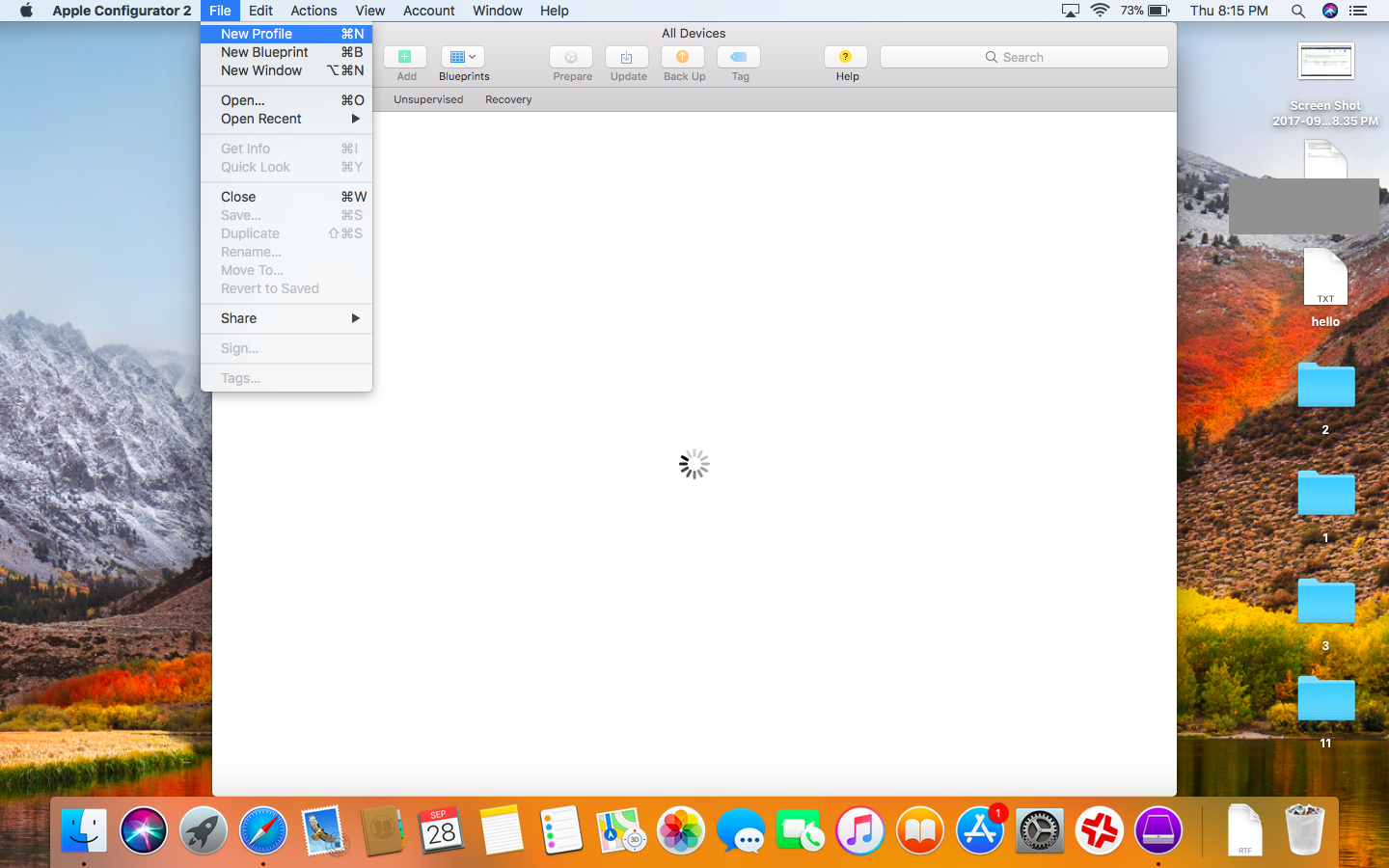
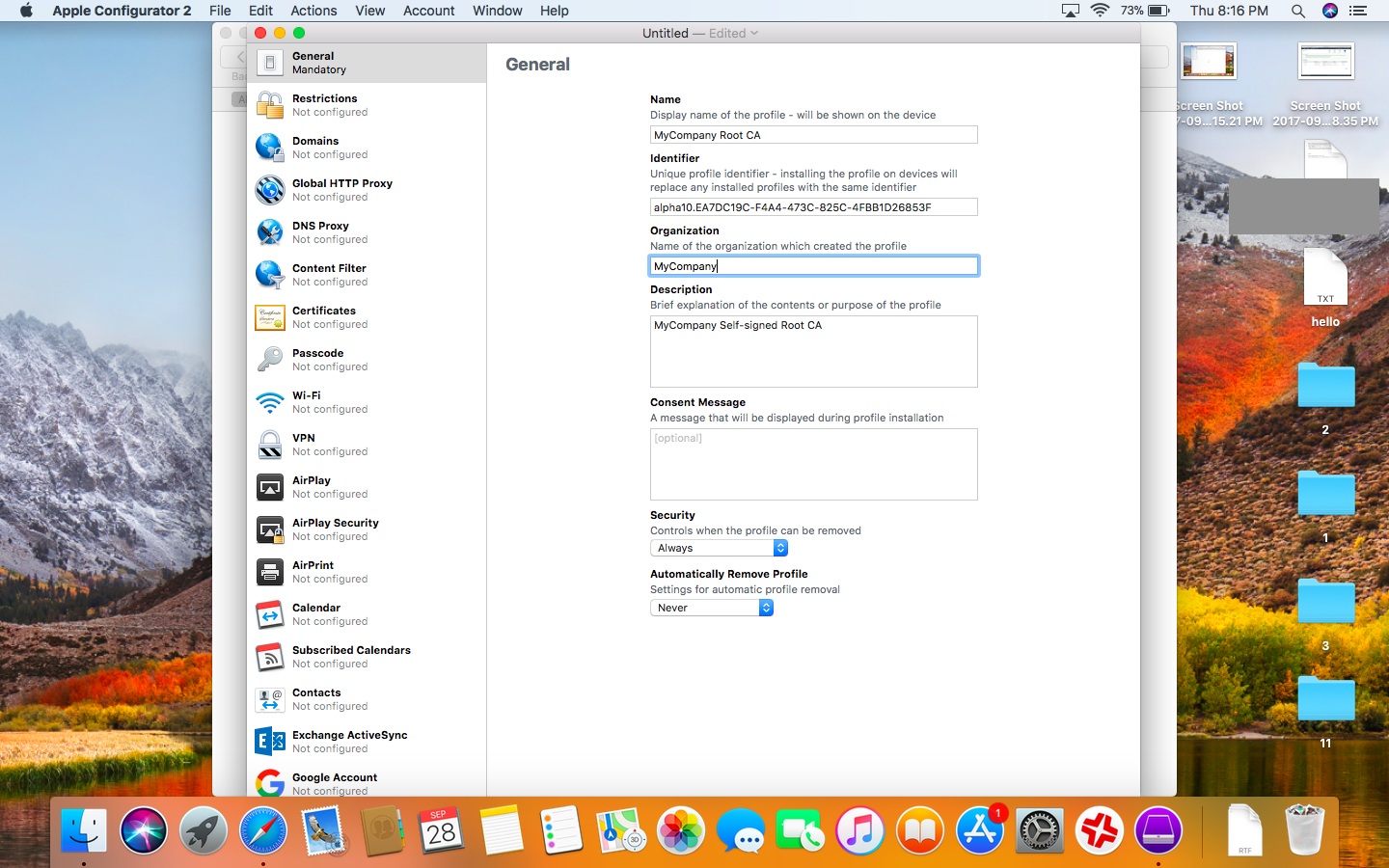
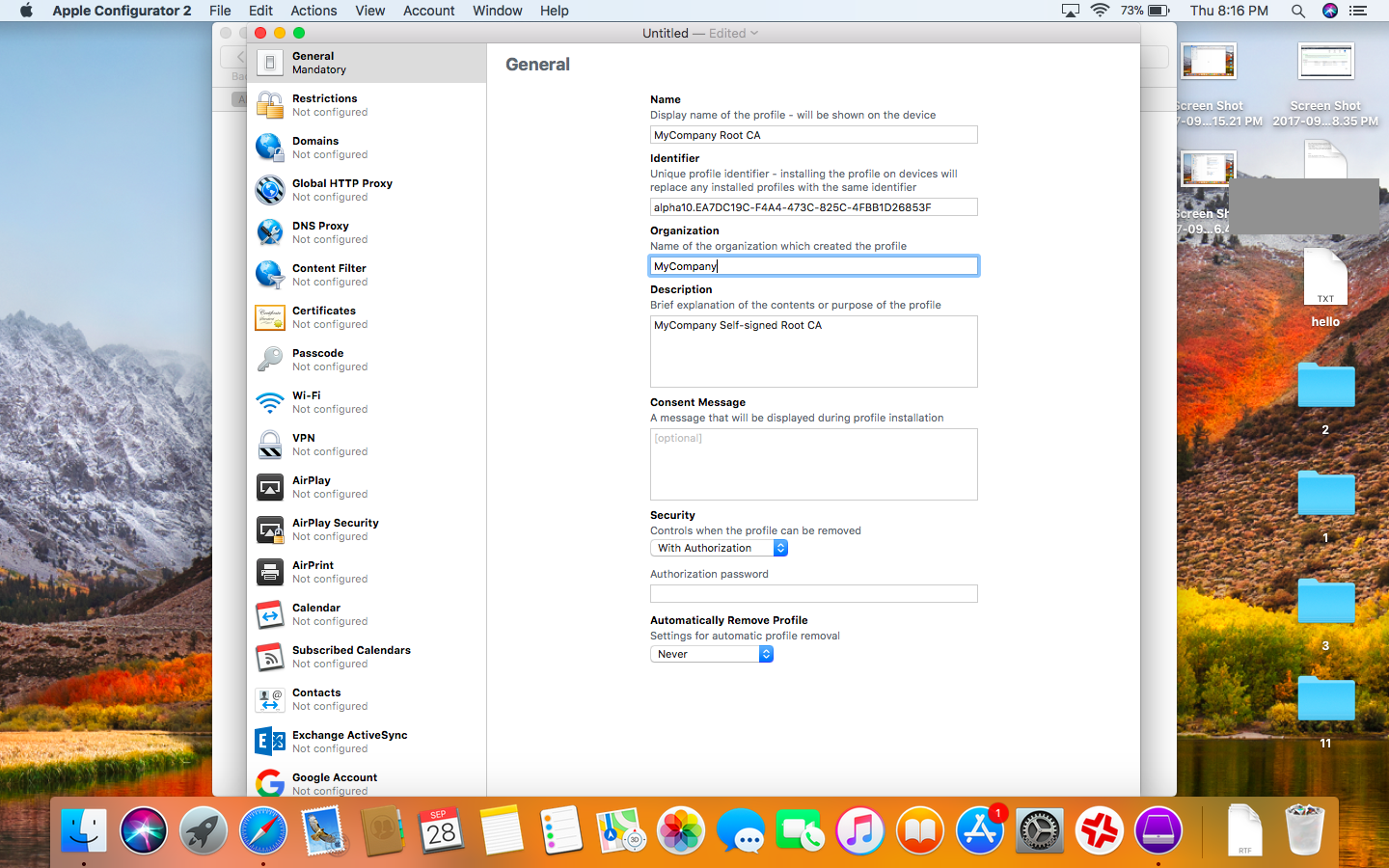
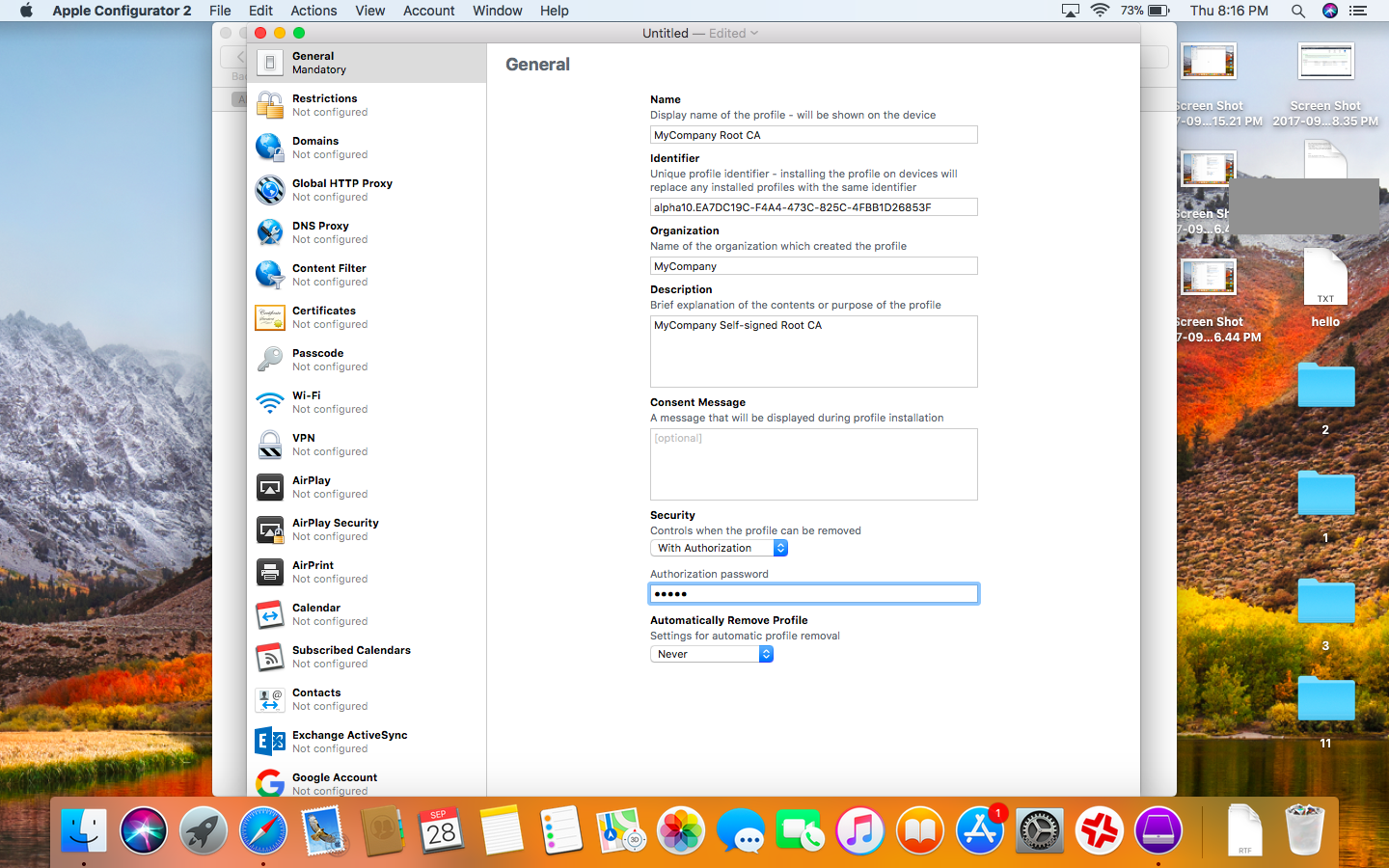
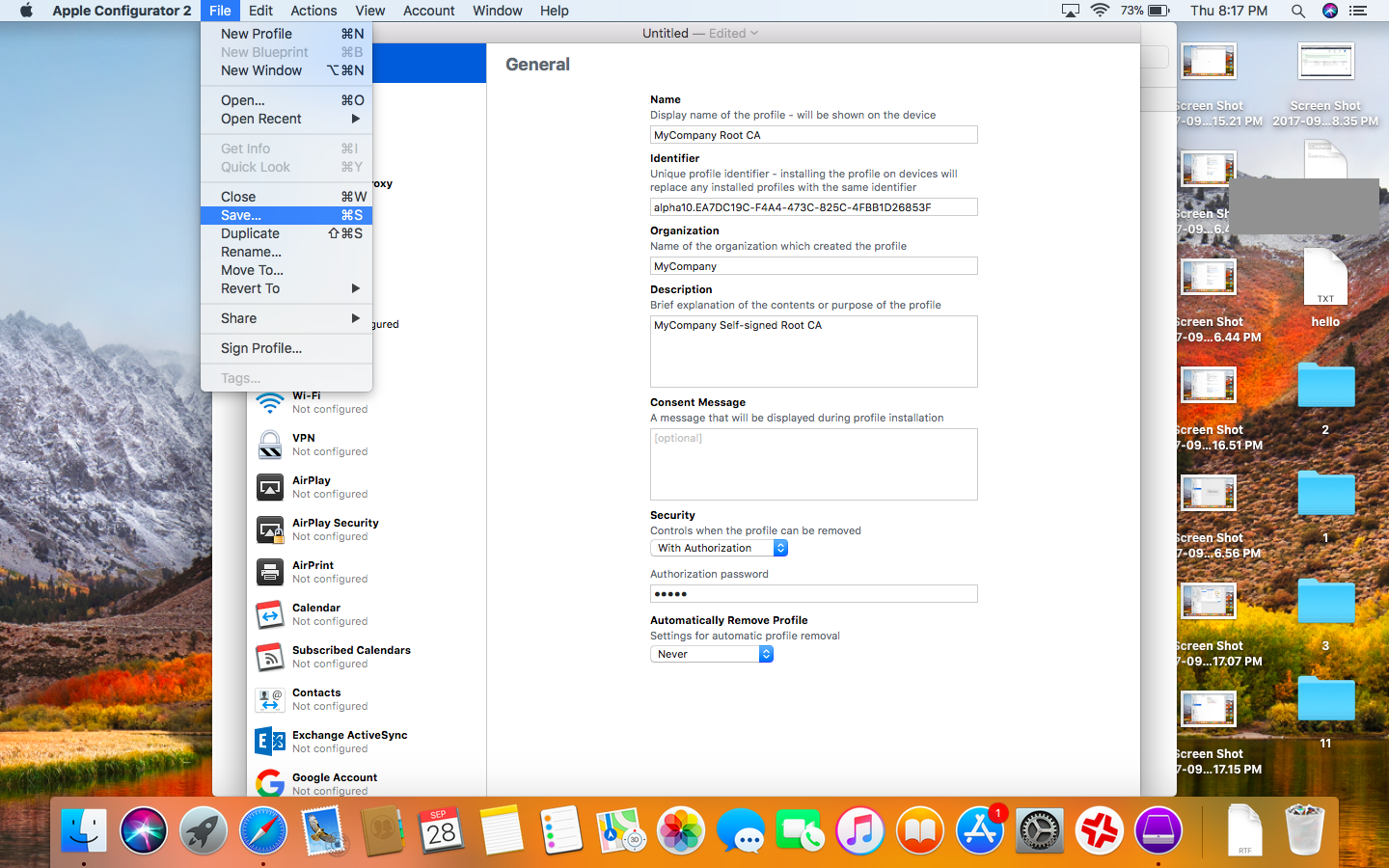
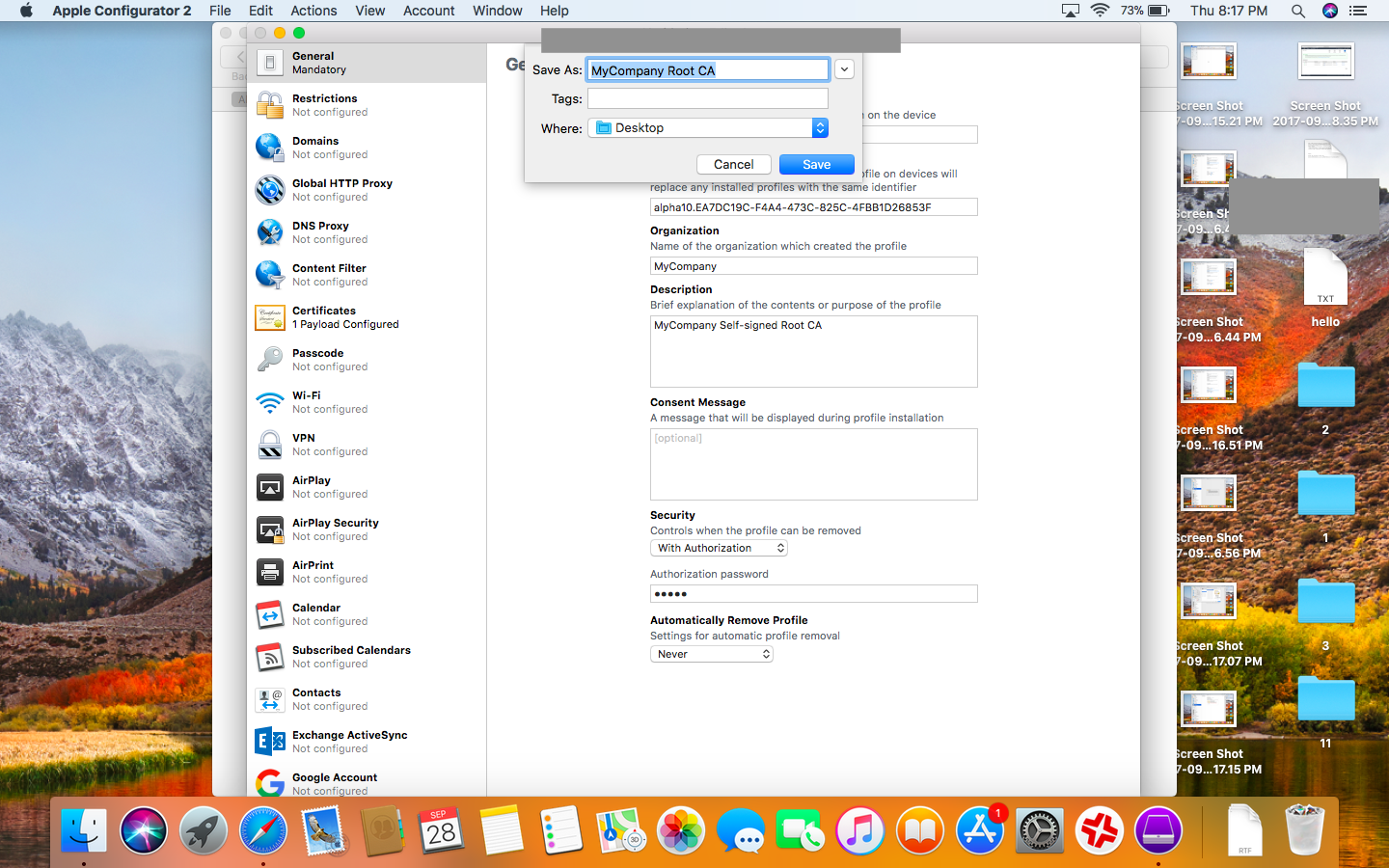
- There are many ways, here I am using Apple Configurator 2 to create .mobileconfig file
- Open AC2, File > New Profile
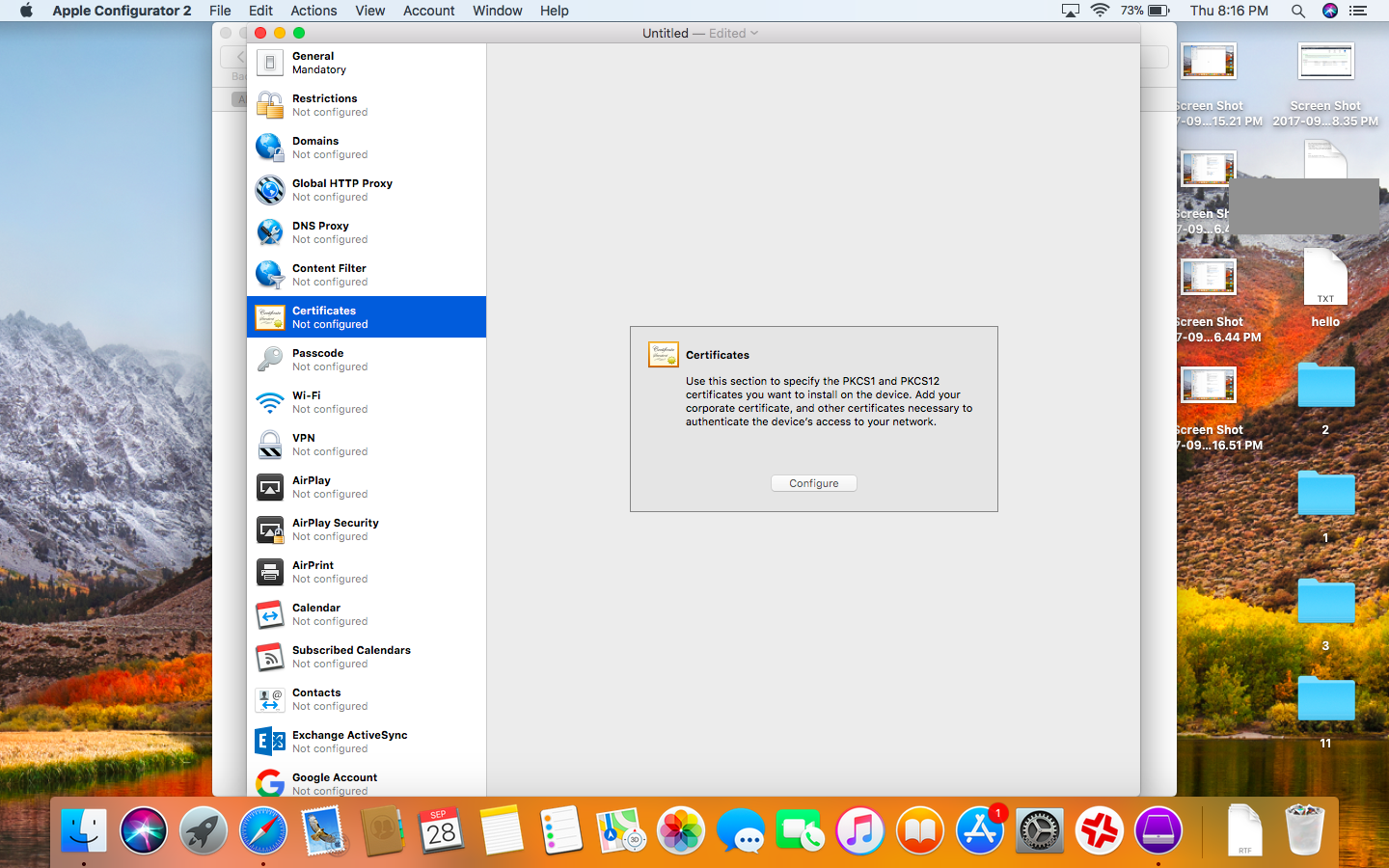
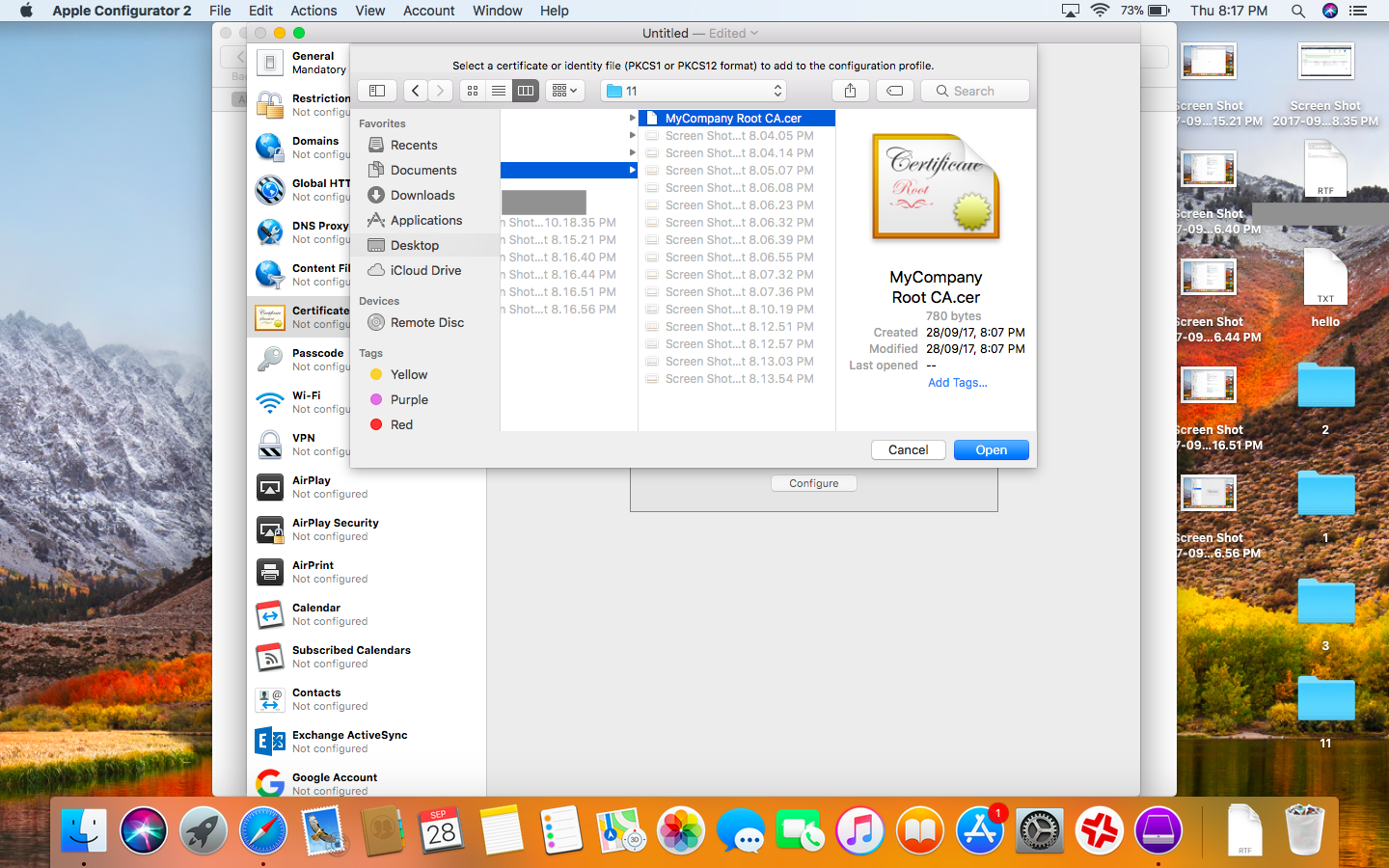
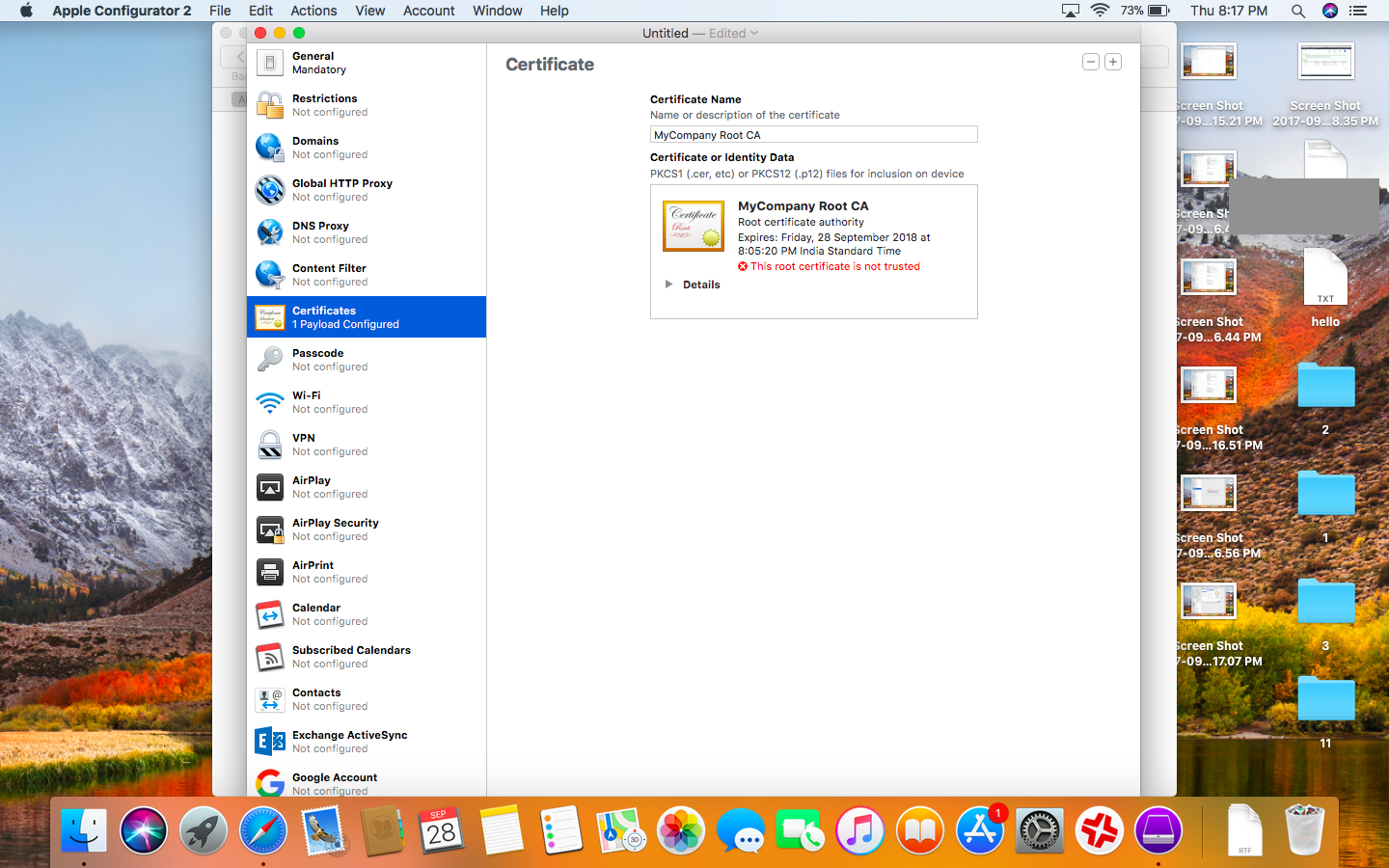
- Certificates > Configure > “Add that certificate”
- Save
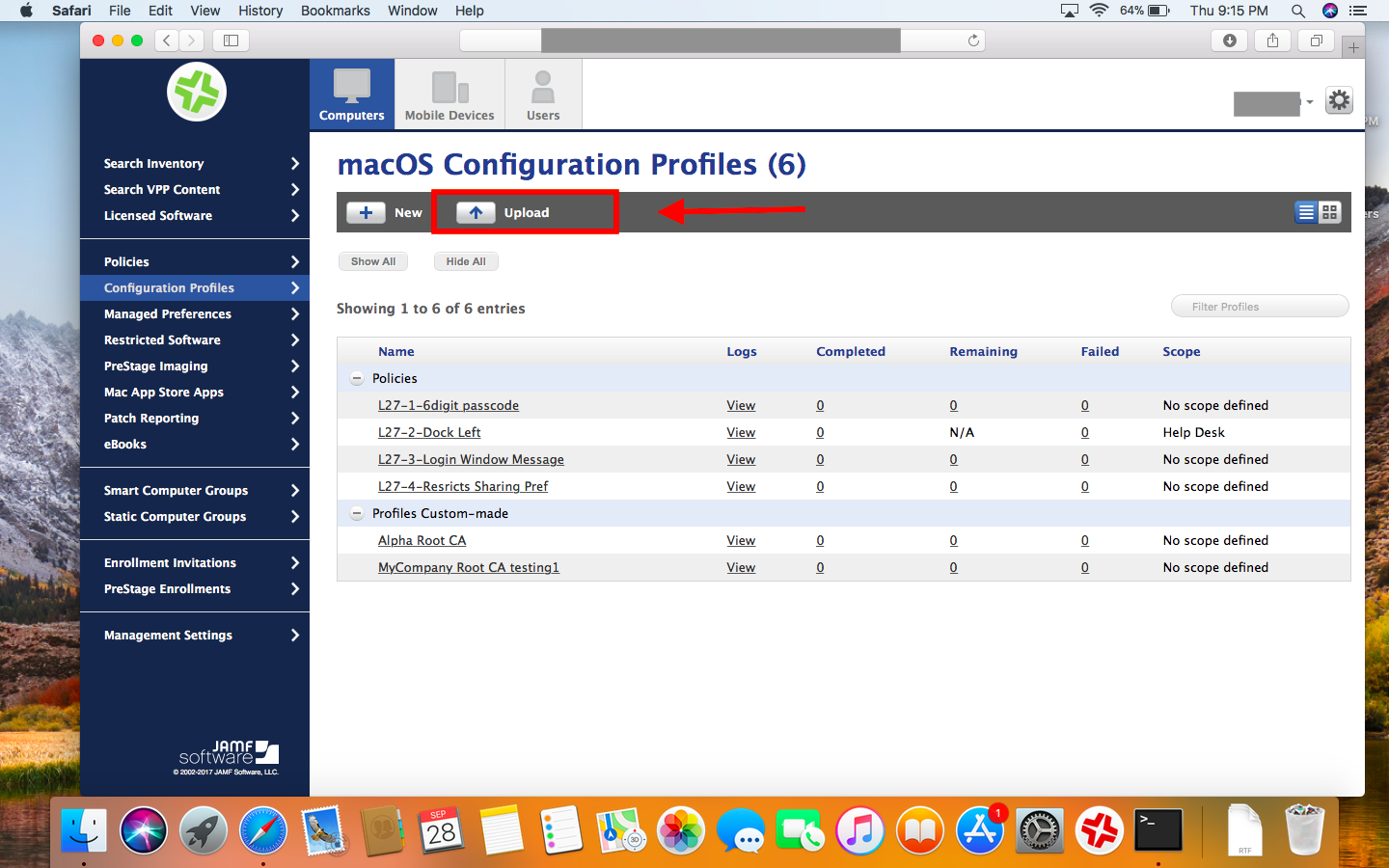
- Go to your JSS
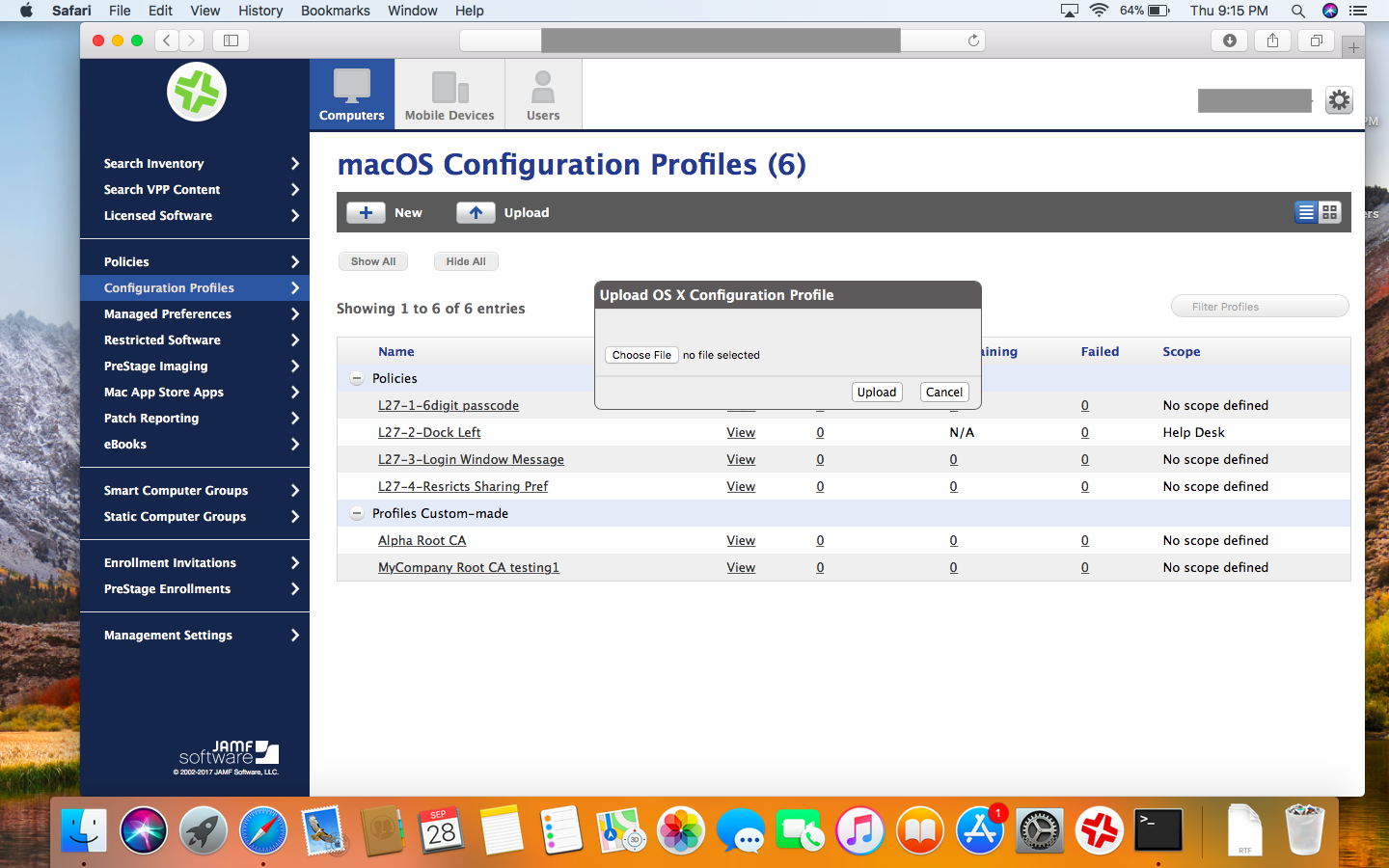
- Configuration Profile > Upload
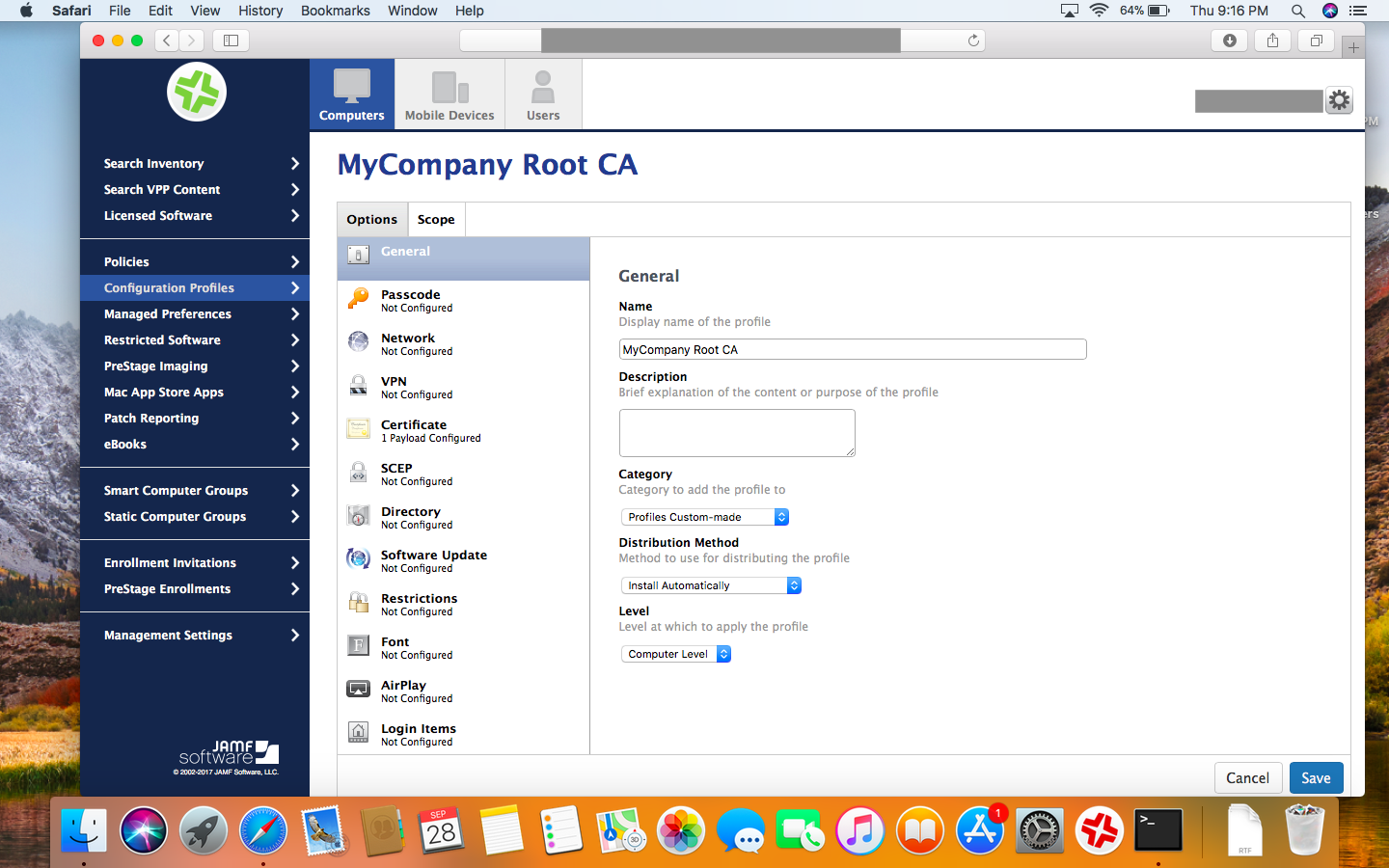
- Distribution Method > Install Automatically
- Level > Computer level
- Scope > whatever
On ClientMac :
- The Profile pane now lists the “MyCompany” cert profile. (Can be removed by user)
- You can also verify in Keychain app. It will be in System keychain.